
Please Note: This article is written for users of the following Microsoft Excel versions: 2007, 2010, 2013, 2016, 2019, 2021, 2024, and Excel in Microsoft 365. If you are using an earlier version (Excel 2003 or earlier), this tip may not work for you. For a version of this tip written specifically for earlier versions of Excel, click here: Defeating Automatic Date Parsing.

Written by Allen Wyatt (last updated May 2, 2026)
This tip applies to Excel 2007, 2010, 2013, 2016, 2019, 2021, 2024, and Excel in Microsoft 365
Excel is normally pretty smart when it comes to importing data, but sometimes the automatic parsing it uses can be a real bother. For instance, you may import information that contains text strings, such as "1- 4- 9" (without the quotes). This is fine, but if you do a Replace to get rid of the spaces, Excel automatically converts the resulting string (1-4-9) to a date (1/4/2009).
One potential solution is to copy your information to Word and do your searching and replacing there. The problem with this solution is that when you paste the information back into Excel, it will again be parsed as date information and automatically converted to the requisite date serial numbers.
The only satisfactory solution is to make sure that Excel absolutely treats the resulting strings as just that—strings—and not as dates. There are three ways this can be done. The first is to format the cells as text before you do your import. The second approach, which is good if you've already imported, is to make sure that the original text begins with either an apostrophe or a space. This can be ensured by using the Replace feature of Excel (depending on the data you have to work with) or by using the Replace feature of Word (which is much more versatile).
With an apostrophe or space at the beginning of the cell entry, you can remove additional spaces or characters from the cell contents. If the result is text that looks like a date, Excel will not parse it as such because the leading apostrophe or space forces treatment as text.
A third way to perform the task is to follow these steps. (Assume that the original data is in the range A2:A101).
=SUBSTITUTE(A2," ","")
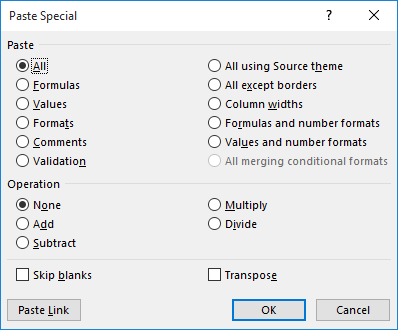
Figure 1. The Paste Special dialog box.
If you are using Excel 2010 or a later version, you can use a shortcut for steps 8 through 10. When you click the down-arrow under the Paste tool (step 8), you see a small palette of options. Select the Values option in the Paste Values section of the drop-down list. The Values option is the left-most option in the Paste Values section; it looks like a clipboard with the number 123 on it.
These steps work because the output of the SUBSTITUTE function is always treated as text. When you copy and paste text values, they are treated as text with no additional parsing done by Excel.
ExcelTips is your source for cost-effective Microsoft Excel training. This tip (9331) applies to Microsoft Excel 2007, 2010, 2013, 2016, 2019, 2021, 2024, and Excel in Microsoft 365. You can find a version of this tip for the older menu interface of Excel here: Defeating Automatic Date Parsing.

Program Successfully in Excel! This guide will provide you with all the information you need to automate any task in Excel and save time and effort. Learn how to extend Excel's functionality with VBA to create solutions not possible with the standard features. Includes latest information for Excel 2024 and Microsoft 365. Check out Mastering Excel VBA Programming today!
Convert a numeric value to text and you may be surprised by how Excel displays the value. Here's a run-down on exactly ...
Discover MoreWhen you paste information from Excel into other programs, you may get more than you actually want. It is not unusual for ...
Discover MoreExcel allows you to adjust spacing between cell walls and the contents of those cells. It does not, however, allow you to ...
Discover MoreFREE SERVICE: Get tips like this every week in ExcelTips, a free productivity newsletter. Enter your address and click "Subscribe."
There are currently no comments for this tip. (Be the first to leave your comment—just use the simple form above!)
Got a version of Excel that uses the ribbon interface (Excel 2007 or later)? This site is for you! If you use an earlier version of Excel, visit our ExcelTips site focusing on the menu interface.
FREE SERVICE: Get tips like this every week in ExcelTips, a free productivity newsletter. Enter your address and click "Subscribe."
Copyright © 2026 Sharon Parq Associates, Inc.
 Please Note:
This article is written for users of the following Microsoft Excel versions: 2007, 2010, 2013, 2016, 2019, 2021, 2024, and Excel in Microsoft 365. If you are using an earlier version (Excel 2003 or earlier), this tip may not work for you. For a version of this tip written specifically for earlier versions of Excel, click here:
Please Note:
This article is written for users of the following Microsoft Excel versions: 2007, 2010, 2013, 2016, 2019, 2021, 2024, and Excel in Microsoft 365. If you are using an earlier version (Excel 2003 or earlier), this tip may not work for you. For a version of this tip written specifically for earlier versions of Excel, click here:
Comments