
Please Note: This article is written for users of the following Microsoft Excel versions: 2007, 2010, 2013, 2016, 2019, 2021, 2024, and Excel in Microsoft 365. If you are using an earlier version (Excel 2003 or earlier), this tip may not work for you. For a version of this tip written specifically for earlier versions of Excel, click here: Formatting Subtotal Rows.

Written by Allen Wyatt (last updated January 31, 2026)
This tip applies to Excel 2007, 2010, 2013, 2016, 2019, 2021, 2024, and Excel in Microsoft 365
When you add subtotals to a worksheet, Excel automatically formats the subtotals using a bold font. You, however, may want to have some different type of formatting for the subtotals, such as shading them in yellow or a different color.
If you use subtotals sparingly, and only want to apply a different format for one or two worksheets, you can follow these general steps:
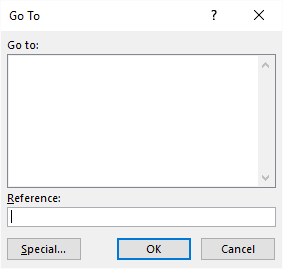
Figure 1. The Go To dialog box.
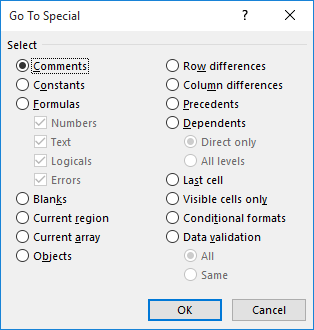
Figure 2. The Go To Special dialog box.
If you will be repeatedly adding and removing subtotals to the same data table, you may be interested in using conditional formatting to apply the desired subtotal formatting. Follow these steps:
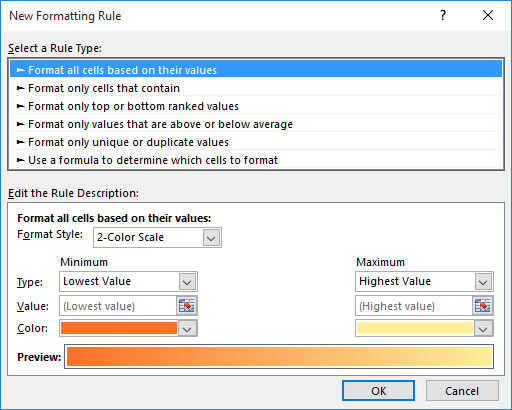
Figure 3. The New Formatting Rule dialog box.
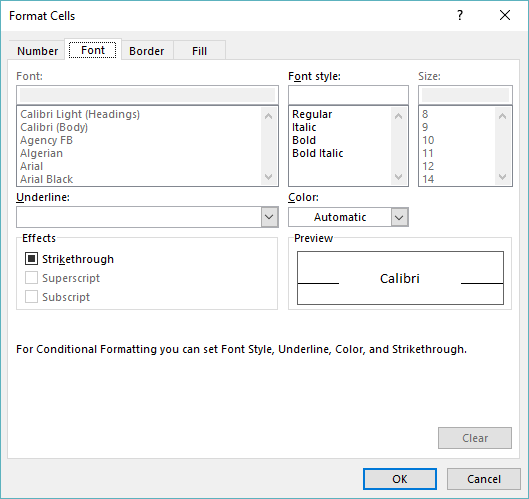
Figure 4. The Format Cells dialog box.
When following the above steps, make sure that you replace A1 (steps 7 and 14) with the column in which your subtotals are added. Thus, if your subtotals are in column G, you would use G1 instead of A1.
If you need to format subtotals on quite a few worksheets, then you may want to create a macro that will do the formatting for you. The following macro examines all the cells in a selected range, and then applies cell coloring, as appropriate.
Sub FormatTotalRows()
    Dim rCell As Range
    Dim sTemp As String

    For Each rCell In Selection
        sTemp = LCase(rCell.Value)
        If Right(sTemp,11) = "grand total" Then
            Rows(rCell.Row).Interior.ColorIndex = 44
        ElseIf Right(sTemp,5) = "total" Then
            Rows(rCell.Row).Interior.ColorIndex = 36
        End If
    Next rCell
End Sub
The macro colors the subtotal rows yellow and the grand total row a darker shade of yellow. (The exact colors on your system may vary depending on the theme you have loaded.) The macro, although simple in nature, is not as efficient as it could be since every cell in the selected range is inspected. Nevertheless, on a 10 column 5000 row worksheet this macro runs in under 5 seconds.
Note:
ExcelTips is your source for cost-effective Microsoft Excel training. This tip (8110) applies to Microsoft Excel 2007, 2010, 2013, 2016, 2019, 2021, 2024, and Excel in Microsoft 365. You can find a version of this tip for the older menu interface of Excel here: Formatting Subtotal Rows.

Professional Development Guidance! Four world-class developers offer start-to-finish guidance for building powerful, robust, and secure applications with Excel. The authors show how to consistently make the right design decisions and make the most of Excel's powerful features. Check out Professional Excel Development today!
Adjusting the height of a row or range of rows is relatively easy in Excel. How do you adjust the height of those same ...
Discover MoreIf you have some cells merged in a worksheet, and you wrap text within that merged cell, Excel won't automatically resize ...
Discover MoreWhen you format a cell so that the information within it can wrap to multiple lines, you may be surprised if Excel ...
Discover MoreFREE SERVICE: Get tips like this every week in ExcelTips, a free productivity newsletter. Enter your address and click "Subscribe."
There are currently no comments for this tip. (Be the first to leave your comment—just use the simple form above!)
Got a version of Excel that uses the ribbon interface (Excel 2007 or later)? This site is for you! If you use an earlier version of Excel, visit our ExcelTips site focusing on the menu interface.
FREE SERVICE: Get tips like this every week in ExcelTips, a free productivity newsletter. Enter your address and click "Subscribe."
Copyright © 2026 Sharon Parq Associates, Inc.
 Please Note:
This article is written for users of the following Microsoft Excel versions: 2007, 2010, 2013, 2016, 2019, 2021, 2024, and Excel in Microsoft 365. If you are using an earlier version (Excel 2003 or earlier), this tip may not work for you. For a version of this tip written specifically for earlier versions of Excel, click here:
Please Note:
This article is written for users of the following Microsoft Excel versions: 2007, 2010, 2013, 2016, 2019, 2021, 2024, and Excel in Microsoft 365. If you are using an earlier version (Excel 2003 or earlier), this tip may not work for you. For a version of this tip written specifically for earlier versions of Excel, click here:
Comments