

Written by Allen Wyatt (last updated April 11, 2026)
This tip applies to Excel 2007, 2010, 2013, 2016, 2019, 2021, 2024, and Excel in Microsoft 365
Johna needs to determine if a particular date is between two other dates. For instance, she may need to determine if April 8, 2026, is between August 1, 2025, and July 31, 2026. She is trying to figure out the formula that will make this determination.
There are actually a wide range of formulas you could use, ranging from the short to the very long. In this tip, though, I'll focus on the shorter formulaic approaches. Before doing so, it is good to remember that dates (and times) are stored internally by Excel as numbers. The portion of the date before the decimal point (the integer portion of the number) is the serial number for the date, and the portion to the right of the decimal place is the time.
Since dates and times are stored as numbers, it becomes a relatively easy task to simply compare the numbers to determine which is higher or lower and if something is between the high and low. For instance, let's assume that you have your starting date (August 1, 2025) in cell A1 and your ending date (July 31, 2026) in cell A2. You could place the date to check into cell D1 and use the following formula:
=IF(AND(D1>=A1,D1<=A2),"Yes","No")
The formula checks to see if the date in D1 is both greater than or equal to A1 and less than or equal to A2. Only if those two conditions are met is "Yes" returned, otherwise "No" is returned. (See Figure 1.)
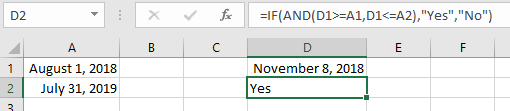
Figure 1. Comparing numbers to determine which is higher or lower and between the high and low.
If you think that the dates include times, then you may want to adjust for that by stripping off the portion of the serial number that represents the time:
=IF(AND(TRUNC(D1,0)>=TRUNC(A1,0),TRUNC(D1,0)<=TRUNC(A2,0)),"Yes","No")
If you are actually comparing text strings and not recognized Excel dates, then you'll need to use the DATEVALUE function to convert the strings into dates:
=IF(AND(DATEVALUE(D1)>=DATEVALUE(A1),DATEVALUE(D1)<=DATEVALUE(A2)),"Yes","No")
The result of using the DATEVALUE function would be similar to the following figure: (See Figure 2.)

Figure 2. Comparing text strings using the DATEVALUE function to convert strings into dates.
Each of the formulas, so far, has been the same basic formula; the only thing different between them is the adding of additional functions to compensate for the characteristics of how the dates are stored in the cells. For an entirely different way to determine if a date is between two other dates, you could use the following formulaic approach:
=IF(D1=MEDIAN(D1,A1,A2),"Yes","No")
Since the MEDIAN function is calculated using three numbers, it always returns the number that is between the lower and the higher number. This means that if D1 is really between the other two, it will always be returned; if D1 is not between the other two, then one of the others will be returned.
Interestingly, if you reorganized your data a bit so that the three values were adjacent to each other (for instance, by moving the comparison date from D1 to A3), then you could replace the three separate cell references with a range of the three cells, making the formula even shorter:
=IF(A3=MEDIAN(A1:A3),"Yes","No")
The advantage to using the MEDIAN approach to the AND approach is that you don't need to worry which of the range values (A1 or A2) is the start or the end date for the comparison—the MEDIAN function sorts that all out. (See Figure 3.)
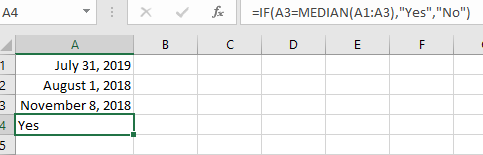
Figure 3. Comparing values using the MEDIAN funtion.
ExcelTips is your source for cost-effective Microsoft Excel training. This tip (12742) applies to Microsoft Excel 2007, 2010, 2013, 2016, 2019, 2021, 2024, and Excel in Microsoft 365.

Excel Smarts for Beginners! Featuring the friendly and trusted For Dummies style, this popular guide shows beginners how to get up and running with Excel while also helping more experienced users get comfortable with the newest features. Check out Excel 2019 For Dummies today!
Need a way to enter dates for every other Tuesday (or some other regular interval)? Excel makes it easy, providing ...
Discover MoreGiven a particular week number for a year, you may want to figure out the date of the last day in that week. There is no ...
Discover MoreDifferent businesses have different ways to calculate elapsed time for billing purposes. Figuring out a formula that ...
Discover MoreFREE SERVICE: Get tips like this every week in ExcelTips, a free productivity newsletter. Enter your address and click "Subscribe."
2026-04-11 11:00:58
J. Woolley
Here's another formula suggested by Bob Schaettle:
=IF((A1-D1)*(A2-D1)<=0, "Yes", "No")
Got a version of Excel that uses the ribbon interface (Excel 2007 or later)? This site is for you! If you use an earlier version of Excel, visit our ExcelTips site focusing on the menu interface.
FREE SERVICE: Get tips like this every week in ExcelTips, a free productivity newsletter. Enter your address and click "Subscribe."
Copyright © 2026 Sharon Parq Associates, Inc.
Comments