

Written by Allen Wyatt (last updated December 6, 2025)
This tip applies to Excel 2007, 2010, 2013, 2016, 2019, 2021, 2024, and Excel in Microsoft 365
Avner notes that when he copies information from an external source, the default "paste" is to match the origin's format. But 99% (it is probably 99.99%) of the time, he wants to use the destination worksheet's format, so he needs to change the paste option to "Destination" format. Avner wonders if there is a way to change the default paste format to match the destination format.
Yes, there is a way to change the default using macros. However, you may want to consider a non-macro way, as well. In order to take this approach, the cleanest approach would be to add the desired paste mode to the Quick Access Toolbar. Follow these steps:
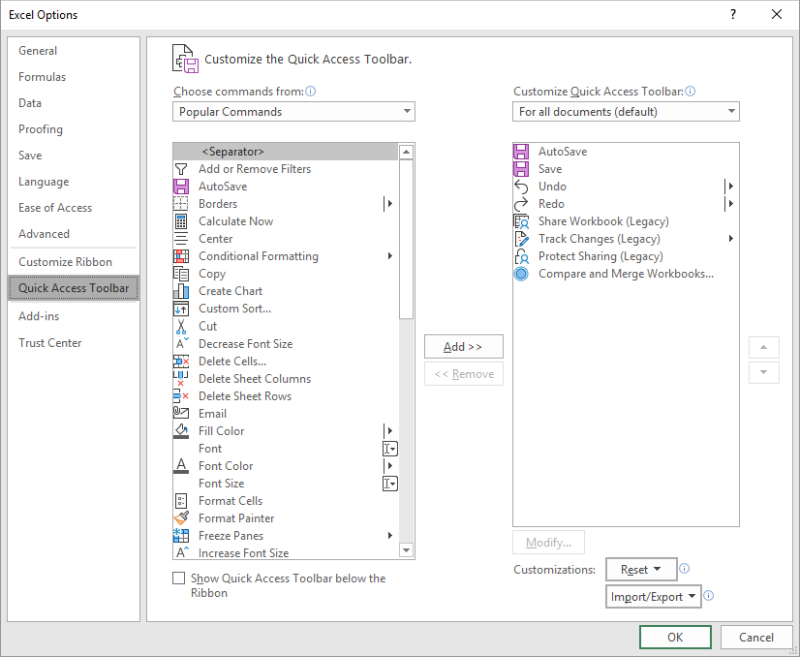
Figure 1. The Quick Access Toolbar option in the Excel Options dialog box.
If you don't see "Paste and Match Destination Formatting" in step 4, make sure you followed all of the previous steps exactly, especially step 3. (The command really is there.)
Now when you want to paste, you can simply click on the newly added tool and you will have the desired effect in your worksheet.
If you want to take the macro route, you can create a very short macro like the following:
Sub PasteMyWay()
    On Error Resume Next
    ActiveCell.PasteSpecial Paste:=xlPasteValues
End Sub
You can modify the value of the Paste parameter to be something different, if you find a different pasting mode is better for your purposes. Here are the Excel docs that explain the modes available:
https://docs.microsoft.com/en-us/office/vba/api/excel.xlpastetype
Once your macro is set up, you can replace the regular Ctrl+V command by following these steps:
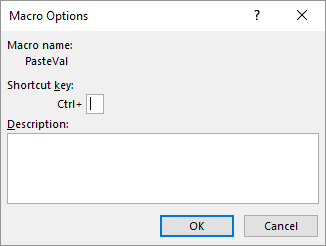
Figure 2. The Macro Options dialog box.
Now whenever you press Ctrl+V, your macro is executed, and the paste mode matches whatever you specified in the macro.
Note:
ExcelTips is your source for cost-effective Microsoft Excel training. This tip (13669) applies to Microsoft Excel 2007, 2010, 2013, 2016, 2019, 2021, 2024, and Excel in Microsoft 365.

Dive Deep into Macros! Make Excel do things you thought were impossible, discover techniques you won't find anywhere else, and create powerful automated reports. Bill Jelen and Tracy Syrstad help you instantly visualize information to make it actionable. You’ll find step-by-step instructions, real-world case studies, and 50 workbooks packed with examples and solutions. Check out Microsoft Excel 2019 VBA and Macros today!
Need to quickly select a range of cells? Perhaps the easiest way is to use both the mouse and the keyboard together, as ...
Discover MoreGot too much information in a single cell? Here's how you can use a macro to pull apart that information and put it into ...
Discover MoreWant to convert the text in a cell so that it wraps after every word? You could edit the cell and press Alt+Enter after ...
Discover MoreFREE SERVICE: Get tips like this every week in ExcelTips, a free productivity newsletter. Enter your address and click "Subscribe."
2025-12-11 10:40:15
Riaz
In Excel 365. the command has become "Match Destination Formatting (Paste and Match Destination Formatting) (PasteDestinationFormatting) and so is found under M and not under P.
2025-12-07 05:28:48
Mike J
This AutoHotkey Script seems to do the job, retaining the UndoStack
This version uses AutoHotkey V1
; -------------------------------------------------------------
; Excel: Replace Ctrl+V with Paste Values
; Ctrl+V ? Paste Values Only
; DOES NOT clear undo stack
; Only affects Excel (ahk_class XLMAIN)
; -------------------------------------------------------------
#If WinActive("ahk_class XLMAIN") ; Only active inside Excel
^v::
Send, ^!v ; Ctrl + Alt + V ? Paste Special dialog
Sleep, 30 ; small delay to ensure dialog opens
Send, v{Enter} ; choose "Values" and confirm
return
#If
; -------------------------------------------------------------
This version (translated with AutoHotkey's Converter)
Uses Hotkey V2
; -------------------------------------------------------------
; Excel: Replace Ctrl+V with Paste Values
; Ctrl+V ? Paste Values Only
; DOES NOT clear undo stack
; Only affects Excel (ahk_class XLMAIN)
; -------------------------------------------------------------
#HotIf WinActive("ahk_class XLMAIN") ; Only active inside Excel
^v::
{ ; V1toV2: Added opening brace for [^v]
global ; V1toV2: Made function global
Send("^!v") ; Ctrl + Alt + V ? Paste Special dialog
Sleep(30) ; small delay to ensure dialog opens
Send("v{Enter}") ; choose "Values" and confirm
return
} ; V1toV2: Added closing brace for [^v]
#HotIf
; -------------------------------------------------------------
2025-12-06 12:01:29
J. Woolley
My Excel Toolbox includes the CopyValues macro (Ctrl+Shift+C) to copy unformatted cell values from a selected range to the Windows clipboard, which can then be pasted into a website or other document. Pasting the CopyValues result into Excel is similar to using Paste Values.
See https://sites.google.com/view/MyExcelToolbox/
2025-12-06 11:50:10
J. Woolley
The PasteMyWay macro can be run using a keyboard shortcut as described in the Tip. For the shortcut key (step 4), consider Shift+V (upper case) instead of v (lower case). This makes the macro's keyboard shortcut Ctrl+Shift+V, preserving Ctrl+V for pasting in the usual way.
NOTE: The macro only works when pasting something copied from within Excel (or certain Office applications). It will not paste an item that was copied to the clipboard from another application.
If you want a general purpose way to paste values (text without formatting), consider the Microsoft Store's PureText app. See http://stevemiller.net/PureText/
2025-12-06 07:20:08
Alex Blakenburg
If you are trying to add it to your Quick Access Toolbar under All Command or in fact Commands Not in Ribbon, it is called "Match Destination Formatting" (so look under M not P).
It is only after you add it to your QAT and you hover over newly added button that you can see if referenced as "Paste and Match Destination Formatting"
I am running MS365 in case it is different on other versions.
2025-12-06 06:46:25
Alex Blakenburg
Unless you are running an old Windows OS you should be able to use Ctrl+Shift+V to Paste Values. I believe that on a Mac OS it's Option+Shift+Command+V
Got a version of Excel that uses the ribbon interface (Excel 2007 or later)? This site is for you! If you use an earlier version of Excel, visit our ExcelTips site focusing on the menu interface.
FREE SERVICE: Get tips like this every week in ExcelTips, a free productivity newsletter. Enter your address and click "Subscribe."
Copyright © 2026 Sharon Parq Associates, Inc.
Comments