

Written by Allen Wyatt (last updated February 7, 2026)
This tip applies to Excel 2007, 2010, 2013, 2016, 2019, 2021, 2024, and Excel in Microsoft 365
Muhammad has a long list of company names in a worksheet. Each company's name has somehow had all spaces removed, so that (for example) they appear as "AstroPhysics" instead of "Astro Physics." Muhammad needs a way to process all the company names to insert a single space between any occurrence of a capital letter, except for the first letter in the cell. He wonders if there is an easy way to do this.
There are a few ways that you can go about adding the spaces. Before getting to the inevitable macro-based solutions, you might want to examine the company names. It could be that there is simply a non-printing character between each word in the name, instead of a space. You can determine this by editing the cell, positioning the insertion point a few characters before a capital letter, and then pressing the right arrow several times. You should see the insertion point move a single space to the right after each press; if it seems to "hesitate" where the space should be, then there is a non-printing character there.
In this case, the best solution is to do a Find and Replace operation to replace the non-printing character with an actual space. (You can select the non-printing character—hold down the Shift key as you press the right arrow over where you believe it to be—and copy it. Then paste it into the Find What box to do your search.)
Assuming the data doesn't have any non-printing characters in it, you might also try using a non-macro approach. Perhaps the simplest approach is to add a helper column or two. In the first you can enter a formula to figure out the position of the second uppercase letter within the company name. Assuming the company name is in cell A1, the formula, which follows, should be entered as an array formula. (If you are using Excel 2019, 2021, 2024, or Microsoft 365, you can simply press Enter.)
=SMALL(FIND(0,SUBSTITUTE(A1,CHAR(ROW(INDIRECT("65:90"))),0)&0),2)
If this formula was entered into cell B1, then you could use the following to insert the space into the original company name:
=REPLACE(A1,B1,0," ")
There is a huge drawback to this approach, however: It assumes that your original data follows a very strict format. It works marvelously with company names that start with a capital letter and that require the insertion of only a single space. If the name doesn't fit these parameters, then it won't work as expected.
Of course, you can overcome these issues if you use a macro to insert the spaces. The following is a simple approach that looks at each character in the cell. If the character is an uppercase letter and the character immediately before it is lowercase, then a space is inserted before the character. When the macro is done, the string is stuffed back into the cell.
Function Add_Spaces(ByVal sText As String) As String
    Dim CharNum As Long
    Dim FixedText As String
    Dim PrevCode As Long
    Dim CurrCode As Long

    FixedText = Left(sText, 1)

    For CharNum = 2 To Len(sText)
        PrevCode = Asc(Mid(sText, CharNum - 1, 1))
        CurrCode = Asc(Mid(sText, CharNum, 1))

        If (PrevCode >= 97 And PrevCode <= 122) _
          And (CurrCode >= 65 And CurrCode <= 90) Then
            FixedText = FixedText & " "
        End If

        FixedText = FixedText & Mid(sText, CharNum, 1)
    Next CharNum
    Add_Spaces = FixedText
End Function
Using the macro is simple; if the company name is in cell A1, then the following is used:
=Add_Spaces(A1)
A more compact approach is to rely on regular expressions to locate the capital letters and insert a space, as shown in the following:
Function SplitCaps(str As String) As String
    Dim objRegex As Object
    Set objRegex = CreateObject("vbscript.regexp")

    With objRegex
        .Global = True
        .Pattern = "([a-z])([A-Z])"
        SplitCaps = .Replace(str, "$1 $2")
    End With
End Function
This particular macro technique requires that you enable regular expressions. You do this in the VB Editor by choosing Tools | References and then scrolling through the available references to locate the Microsoft VBScript Regular Expressions 5.5 option. Make sure the check box to the left of the reference is selected, then click OK. You can then utilize the SplitCaps function from within Excel in the same way you could use the Add_Spaces function.
Of course, the appropriateness of any approach will depend, in large part, on the characteristics of the data you are working with. If your original company names include multiple sequential capital letters (such as "ABCCorp.") then you may not want a space inserted between each capital letter. In addition, non-letter characters may throw a wrench in the works such that "H&M" becomes "H& M" or remains as "H&M" (depending on the approach you use).
If you need to treat blocks of capital letters as acronyms, then you'll need a more sophisticated routine. One approach is to build the result character by character, but only insert a space before a capital letter when the next character is lowercase. This treats the last capital letter in an acronym as the start of the next word.
Function SplitCapsAcronyms(ByVal sText As String) As String
    Dim i As Long
    Dim outText As String
    Dim ch1 As String
    Dim ch2 As String

    outText = Left(sText, 1)
    For i = 2 To Len(sText)
        ch1 = Mid(sText, i, 1)
        ch2 = Mid(sText, i + 1, 1)

        If (ch1 >= "A" And ch1 <= "Z") _
          And (ch2 >= "a" And ch2 <= "z") Then
            outText = outText & " "
        End If

        outText = outText & ch1
    Next i
    SplitCapsAcronyms = outText
End Function
With this approach, "ABCCorp" becomes "ABC Corp" while "AstroPhysics" becomes "Astro Physics." If you want the function to operate on cell values directly, you can pass the cell contents to the function the same way shown earlier.
Note:
ExcelTips is your source for cost-effective Microsoft Excel training. This tip (12810) applies to Microsoft Excel 2007, 2010, 2013, 2016, 2019, 2021, 2024, and Excel in Microsoft 365.
Solve Real Business Problems Master business modeling and analysis techniques with Excel and transform data into bottom-line results. This hands-on, scenario-focused guide shows you how to use the latest Excel tools to integrate data from multiple tables. Check out Microsoft Excel Data Analysis and Business Modeling today!
When you want to remove information from a worksheet, you can either clear cells or delete cells. This tip examines the ...
Discover MoreWhen you enter data in a worksheet, Excel tries to figure out what type of data you are entering and treat the entry ...
Discover MoreAs you use Excel to collect data over time, sometimes winnowing out the latest data can present a challenge. Here are a ...
Discover MoreFREE SERVICE: Get tips like this every week in ExcelTips, a free productivity newsletter. Enter your address and click "Subscribe."
2026-02-09 11:01:07
J. Woolley
Re. Function SplitCapsAcronyms2 in my previous comment below, the following formula produces the same result for text in cell A1:
=REGEXREPLACE(REGEXREPLACE(REGEXREPLACE(A1,
"([a-z])([A-Z])", "$1 $2"),
"([A-Z]+)([A-Z][a-z])", "$1 $2"),
"([a-z]) ([A-Z])$", "$1$2")
Of course this formula must be entered as one line or by separating each line with Alt+Enter.
REGEXREPLACE currently requires Excel 365, but My Excel Toolbox's RegExSubstitute can be used instead:
=RegExSubstitute(RegExSubstitute(RegExSubstitute(A1,
"([a-z])([A-Z])", "$1 $2"),
"([A-Z]+)([A-Z][a-z])", "$1 $2"),
"([a-z]) ([A-Z])$", "$1$2")
See https://sites.google.com/view/MyExcelToolbox/
2026-02-08 11:09:21
J. Woolley
Here's an alternate version of the Tip's Function SplitCapsAcronyms based on its Function SplitCaps and RegExp:
Function SplitCapsAcronyms2(ByVal sText As String) As String
With CreateObject("VBScript.RegExp")
.Global = True
.Pattern = "([a-z])([A-Z])"
sText = .Replace(sText, "$1 $2")
.Pattern = "([A-Z]+)([A-Z][a-z])"
sText = .Replace(sText, "$1 $2")
.Pattern = "([a-z]) ([A-Z])$"
sText = .Replace(sText, "$1$2")
SplitCapsAcronyms2 = sText
End With
End Function
Here's a comparison of results with differences indicated by an asterisk (see Figure 1 below)
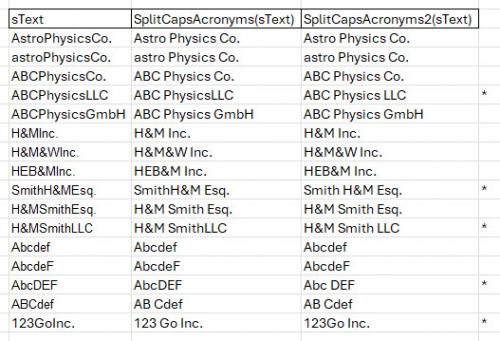
Figure 1.
2026-02-07 22:45:00
Alex Blakenburg
The regular expression instruction is not quite correct. The example code uses late binding ie "CreateObject" and as such does NOT need a reference to be set. In fact if you have Excel 2016 or later and the version is 2508 or later you don't even need to set the reference for early binding since RegExp classes have been added as native to the VBE.
Got a version of Excel that uses the ribbon interface (Excel 2007 or later)? This site is for you! If you use an earlier version of Excel, visit our ExcelTips site focusing on the menu interface.
FREE SERVICE: Get tips like this every week in ExcelTips, a free productivity newsletter. Enter your address and click "Subscribe."
Copyright © 2026 Sharon Parq Associates, Inc.
Comments