

Written by Allen Wyatt (last updated April 20, 2023)
This tip applies to Excel 2007, 2010, 2013, 2016, 2019, and 2021
Avner notes that when he copies information from an external source, the default "paste" is to match the origin's format. But 99% (it is probably 99.99%) of the time, he wants to use the destination worksheet's format, so he needs to change the paste option to "Destination" format. Avner wonders if there is a way to change the default paste format to match the destination format.
Yes, there is a way to change the default using macros. However, you may want to consider a non-macro way, as well. In order to take this approach, the cleanest approach would be to add the desired paste mode to the Quick Access Toolbar. Follow these steps:
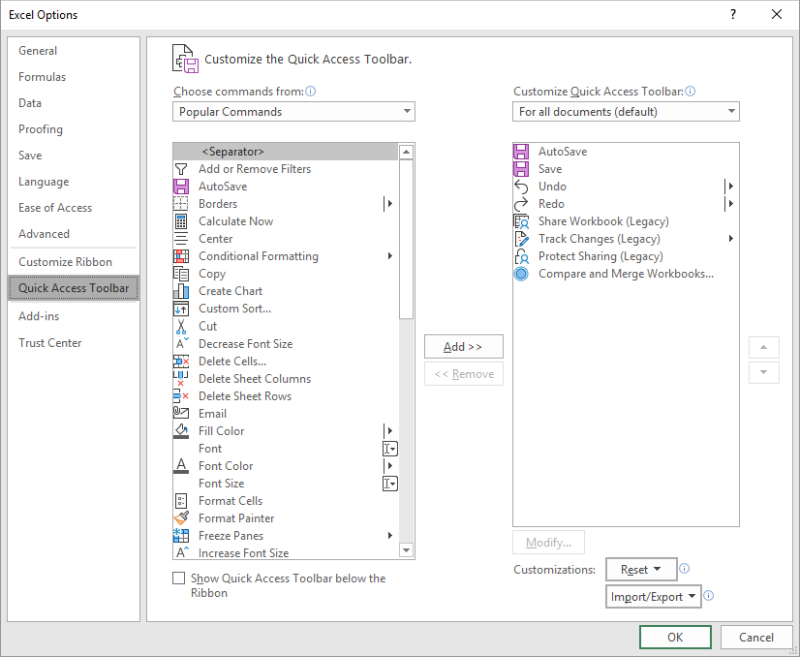
Figure 1. The Quick Access Toolbar option in the Excel Options dialog box.
Now when you want to paste, you can simply click on the newly added tool and you will have the desired effect in your worksheet.
If you want to take the macro route, you can create a very short macro like the following:
Sub PasteMyWay()
    On Error Resume Next
    ActiveCell.PasteSpecial Paste:=xlPasteValues
End Sub
You can modify the value of the Paste parameter to be something different, if you find a different pasting mode is better for your purposes. Here are the Excel docs that explain the modes available:
https://docs.microsoft.com/en-us/office/vba/api/excel.xlpastetype
Once your macro is set up, you can replace the regular Ctrl+V command by following these steps:
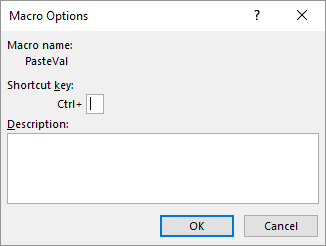
Figure 2. The Macro Options dialog box.
Now whenever you press Ctrl+V, your macro is executed, and the paste mode matches whatever you specified in the macro.
Note:
ExcelTips is your source for cost-effective Microsoft Excel training. This tip (13669) applies to Microsoft Excel 2007, 2010, 2013, 2016, 2019, and 2021.

Best-Selling VBA Tutorial for Beginners Take your Excel knowledge to the next level. With a little background in VBA programming, you can go well beyond basic spreadsheets and functions. Use macros to reduce errors, save time, and integrate with other Microsoft applications. Fully updated for the latest version of Office 365. Check out Microsoft 365 Excel VBA Programming For Dummies today!
Sometimes getting the right thing to show up in a cell can be a bit tricky when working with dates. If you enter a year ...
Discover MoreDelete a cell or a range of cells, and Excel needs to figure out how to rearrange the void left by the deletion. You can ...
Discover MoreExcel includes a handy shortcut for entering data that is similar to whatever you entered in the cell above your entry ...
Discover MoreFREE SERVICE: Get tips like this every week in ExcelTips, a free productivity newsletter. Enter your address and click "Subscribe."
2022-11-17 11:08:30
Marc-Olivier Malépart
Wow... thanks this site have helped me quite often in my new position. I just wanted to take a second to express my gratitude. Thoses scripts rock!
2021-12-27 10:28:12
J. Woolley
For the Quick Access Toolbar, it would be better to choose "Paste Values" or "Paste Formulas" instead of "Paste and Match Destination Formatting." The latter did not work properly in my testing. Note "Paste Formulas" includes constant numeric, date, logical, and text "Values" as well as cell "Formulas."
Also, the Tip's macro probably should use xlPasteFormulas instead of xlPasteValues.
2021-12-26 11:25:29
J. Woolley
The macro MUST be run using a keyboard shortcut as described in the Tip. For the shortcut key (step 4), press Shift+V (upper case) instead of v (lower case). This makes the macro's keyboard shortcut Ctrl+Shift+V, preserving Ctrl+V for pasting in the usual way.
NOTE: The macro only works when pasting something copied from within Excel (or certain Office applications). It will not paste an item that was copied to the clipboard from another application.
If you want a general purpose way to paste values (text without formatting), consider the Microsoft Store's PureText app. See http://stevemiller.net/PureText/
2021-12-25 12:51:12
Daniel McGowan
I'm using excel/microsoft 365 for business on my desktop.
"Paste and Match Destination Formatting" didn't show up for me so i went the macro route.
But when I Ctrl+v nothing happens.
Any advice?
2021-02-14 03:29:13
stan
macro does nothing unless you are inside the cell in which case it normally just does match formatting anyways
2020-08-13 08:31:55
Philip
Macro Doesnt work for me on 2016
2020-04-15 20:46:17
Marco
That's briliant. Thank you verry much.
2019-09-01 09:54:44
Peter Atherton
Harland J
2007 does not have this option, but you can add the paste special dialog to the QAT
Choose Office, Excel Options, Customize, Click the Drop box and choose commands not in the ribbon, Add the Paste Formatting, click OK.
(see Figure 1 below)
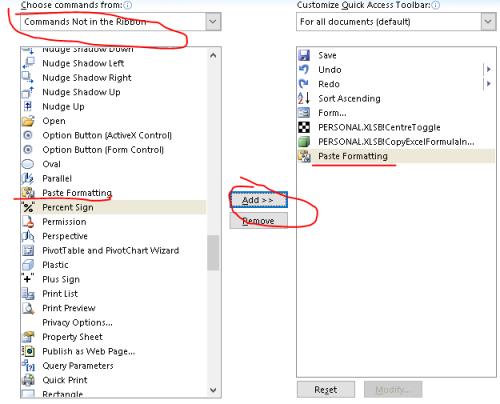
Figure 1. Customize QAT
2019-08-31 15:46:16
Ronmio
I have customized my QAT similarly. But, because of the limited space on the QAT, I just have have buttons for Paste Values, Paste Formatting, and Paste Formulas. I have the buttons side-by-side so that I can accomplish most common pasting scenarios (those three buttons give you six different combinations) with usually one or two quick clicks. I just wish there was a Paste Comments button for the QAT as I need that frequently. Microsoft, are you listening?
2019-08-31 15:37:54
Tom Watkins
Here: (see Figure 1 below)
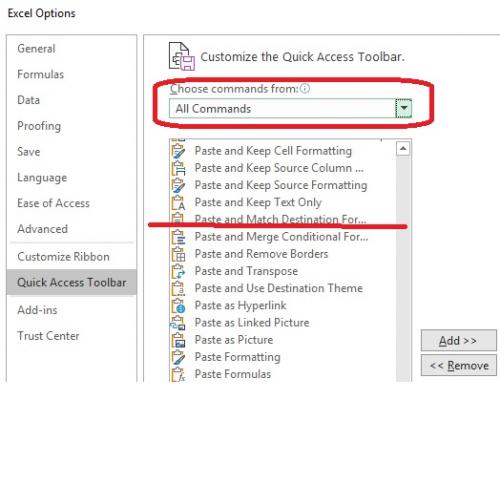
Figure 1.
2019-08-31 11:02:22
Harland Johnson
I like this tip. BUT, "Paste and Batch Destination Formatting" (step 4) does not appear on my list of All Commands (Excel 2007). See screenshot {fig}
2019-08-31 10:50:16
Harland Johnsonq
I like this tip. BUT, "Paste and Batch Destination Formatting" (step 4) does not appear on my list of All Commands (Excel 2007). See screenshot {fig}
Got a version of Excel that uses the ribbon interface (Excel 2007 or later)? This site is for you! If you use an earlier version of Excel, visit our ExcelTips site focusing on the menu interface.
FREE SERVICE: Get tips like this every week in ExcelTips, a free productivity newsletter. Enter your address and click "Subscribe."
Copyright © 2025 Sharon Parq Associates, Inc.
Comments