

Written by Allen Wyatt (last updated December 20, 2025)
This tip applies to Excel 2019, 2021, 2024, and Excel in Microsoft 365
Normally, if you have linked information in your workbook, the information is updated whenever you open the workbook. There may be times when you need to update the links manually, however. You do this by following these steps:
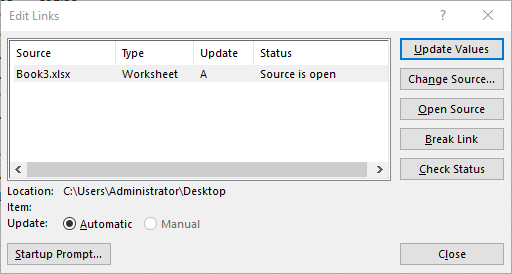
Figure 1. The Workbook Links task pane.
If the Workbook Links tool (step 2) is grayed out, it is because you have no links in your workbook. Note that the links listed in the Workbook Links task pane are to other workbooks. If you have multiple links to the same workbook, then the workbook is listed only once in the task pane. When you choose to refresh the links to that workbook (steps 3 and 4), then all the links to that workbook are refreshed.
If you want to update all of the links instead of doing them individually, you can click the Refresh All option at the top of the Workbook Links task pane. When you are done updating links, you can close the task pane.
ExcelTips is your source for cost-effective Microsoft Excel training. This tip (7556) applies to Microsoft Excel 2019, 2021, 2024, and Excel in Microsoft 365.

Best-Selling VBA Tutorial for Beginners Take your Excel knowledge to the next level. With a little background in VBA programming, you can go well beyond basic spreadsheets and functions. Use macros to reduce errors, save time, and integrate with other Microsoft applications. Fully updated for the latest version of Office 365. Check out Microsoft 365 Excel VBA Programming For Dummies today!
Excel allows you to easily link information from one workbook to another. If you want to get rid of links that may be ...
Discover MoreIf you have linked information in your worksheets, you may want a way you can easily change the targets to which those ...
Discover MoreCombining workbooks that have cross-links to each other can offer some special challenges. This tip examines how you can ...
Discover MoreFREE SERVICE: Get tips like this every week in ExcelTips, a free productivity newsletter. Enter your address and click "Subscribe."
2025-12-21 12:09:45
J. Woolley
The legacy Edit Links dialog (see Figure 1 below) can be opened by adding the Edit Links command to your QAT or to your Custom group in the ribbon; otherwise, use this VBA statement:
Application.Dialogs(xlDialogOpenLinks).Show
My Excel Toolbox includes the following dynamic array function:
=ListExLinks([SkipReference], [SkipHeader])
The result of ListExLinks is similar to the Edit Links dialog minus the Update column, but ListExLinks adds an optional Reference column to identify cells that contain a formula referencing the link.
ListExLinks is concerned with external links referenced by the active workbook, but the LinksToMe macro identifies all workbooks having an external link that references the active workbook.
See https://sites.google.com/view/MyExcelToolbox/
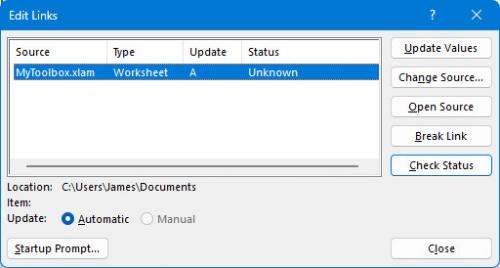
Figure 1.
Got a version of Excel that uses the ribbon interface (Excel 2007 or later)? This site is for you! If you use an earlier version of Excel, visit our ExcelTips site focusing on the menu interface.
FREE SERVICE: Get tips like this every week in ExcelTips, a free productivity newsletter. Enter your address and click "Subscribe."
Copyright © 2025 Sharon Parq Associates, Inc.
Comments