
Nancy wonders if she can use the various new array functions in Excel to create a calendar for a given month in a traditional seven-column, Sunday through Saturday format.
A calendar like Nancy is looking for is nothing but a seven-column grid in which the first day of the month appears in one of the seven cells in the first row. Assuming the beginning day of the desired month is in cell A1, then the grid can be accomplished with this formula:
=SEQUENCE(6,7,A1-WEEKDAY(A1)+1)
Again, cell A1 contains a date such as 1/1/26, which is the first day of the desired month's calendar. You can finish out the calendar by adding a header row (Sun, Mon, Tue, etc.) and changing the formatting of the cells containing dates that are not within the desired month. You can also format the rest of the cells in the grid to show the dates as desired.
If you think that the date in A1 could be any date and you want to automatically hide the dates that are not in the current month, then the formula because slightly more complex. This version uses the LET function to define variables that are helpful in putting together the grid.
=LET(m,MONTH(A1), beg,DATE(YEAR(A1),m,1), grid,SEQUENCE(6,7,beg-WEEKDAY(beg)+1), IF(MONTH(grid)=m,grid,""))
Notice that the formula defines the month of the date (m), the first day of that month (beg), and the grid array itself (grid). Constructing the grid array is done using the same SEQUENCE formula previously used. The IF formula only checks the dates in the grid to determine if they are in the correct month or not. If so, then the date is displayed; if not, then an empty string is displayed. You will still need to format the dates in the returned grid to appear as you desire and add the header row for the grid.
The formula can be slightly expanded it you want the header row added automatically, in this fashion:
=LET(m,MONTH(A1), beg,DATE(YEAR(A1),m,1), grid,SEQUENCE(6,7,beg-WEEKDAY(beg)+1), cal,IF(MONTH(grid)=m,grid,""), VSTACK({"Sun","Mon","Tue","Wed","Thu","Fri","Sat"},cal))
In this variation, the calendar, containing the valid within-month dates, was assigned to the cal variable. Finally, VSTACK was used to add the days of the week (the header row) to what is returned by the formula.
All of the formulas so far return date values which need to be formatted to display in the format you desire. A final change to the formula can be used to return only the day of the month, 1 through 31.
=LET(m,MONTH(A1), beg,DATE(YEAR(A1),m,1), grid,SEQUENCE(6,7,beg-WEEKDAY(beg)+1), cal,IF(MONTH(grid)=m,DAY(grid),""), VSTACK({"Sun","Mon","Tue","Wed","Thu","Fri","Sat"},cal))
The only change in this formula was to, within the IF structure, wrap the grid variable within the DAY function.
Finally, if you want to add a month and year just above the column headers, then you could add an additional variable (mtext) to the LET statement, in this manner:
=LET(m,MONTH(A1), beg,DATE(YEAR(A1),m,1), grid,SEQUENCE(6,7,beg-WEEKDAY(beg)+1), cal,IF(MONTH(grid)=m,DAY(grid),""), mtext,HSTACK("","","",TEXT(A1,"mmmm yyyy"),"","",""), VSTACK(mtext,{"Sun","Mon","Tue","Wed","Thu","Fri","Sat"},cal))
The mtext variable contains a seven-element array where the center element contains the month and year of whatever date is in cell A1. This is added to the VSTACK function, resulting in the month and year just above the day-of-week column headings.
ExcelTips is your source for cost-effective Microsoft Excel training. This tip (10053) applies to Microsoft Excel Excel in Microsoft 365.

Excel Smarts for Beginners! Featuring the friendly and trusted For Dummies style, this popular guide shows beginners how to get up and running with Excel while also helping more experienced users get comfortable with the newest features. Check out Excel 2019 For Dummies today!
Insert or delete a column, and Excel automatically updates references within formulas that are affected by the change. If ...
Discover MoreThe filtering capabilities of Excel are excellent, providing you with great control over which records in a worksheet are ...
Discover MoreWant to create a sequential pattern using formulas? It's easy to do if you take a look at how your data repeats. This tip ...
Discover MoreFREE SERVICE: Get tips like this every week in ExcelTips, a free productivity newsletter. Enter your address and click "Subscribe."
2025-12-20 14:04:23
J. Woolley
Re. my previous comment below, I forgot to add the following link: https://sites.google.com/view/MyExcelToolbox
2025-12-20 11:16:52
J. Woolley
My Excel Toolbox includes the following function to create a calendar that starts with a given month and year and contains any number of months:
=ListCalendar([YearNum], [MonthNum], [NumMonths], [SkipHeader],
[FirstDayOfWeek])
The default value for FirstDayOfWeek is 1 (Sunday). Here is the result of the following formula:
=ListCalendar( , , 2, , 2)
(see Figure 1 below)
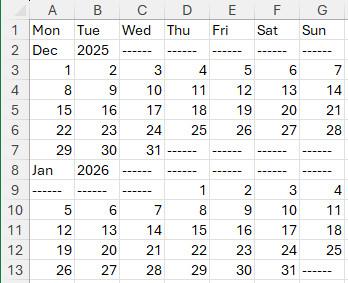
Figure 1.
Got a version of Excel that uses the ribbon interface (Excel 2007 or later)? This site is for you! If you use an earlier version of Excel, visit our ExcelTips site focusing on the menu interface.
FREE SERVICE: Get tips like this every week in ExcelTips, a free productivity newsletter. Enter your address and click "Subscribe."
Copyright © 2026 Sharon Parq Associates, Inc.

Comments