
Please Note: This article is written for users of the following Microsoft Excel versions: 2007, 2010, 2013, 2016, 2019, and 2021. If you are using an earlier version (Excel 2003 or earlier), this tip may not work for you. For a version of this tip written specifically for earlier versions of Excel, click here: Non-Tiled Background Pictures.

Written by Allen Wyatt (last updated February 20, 2024)
This tip applies to Excel 2007, 2010, 2013, 2016, 2019, and 2021
When you add a background picture to an Excel worksheet, the picture is "tiled" so that it fills the whole screen, over and over again. For some background images, this is a great effect. For others, it is bothersome. In these cases, you may want to have only a single copy of the background image appear on-screen.
There is no way to do this directly within Excel, however. The only option is the tiling of background images. You can reduce the bothersome effects of the tiling, though, by loading the background image into your favorite graphics editing program and simply increasing the size of the canvas on which the image is located. You should make the canvas the same size as a full sheet of paper, with the actual image centered on the canvas. Save the new image and use it for your background.
ExcelTips is your source for cost-effective Microsoft Excel training. This tip (8149) applies to Microsoft Excel 2007, 2010, 2013, 2016, 2019, and 2021. You can find a version of this tip for the older menu interface of Excel here: Non-Tiled Background Pictures.

Program Successfully in Excel! This guide will provide you with all the information you need to automate any task in Excel and save time and effort. Learn how to extend Excel's functionality with VBA to create solutions not possible with the standard features. Includes latest information for Excel 2024 and Microsoft 365. Check out Mastering Excel VBA Programming today!
You can add all sorts of objects to your workbooks, including video clips. Here's the pros and cons (along with the ...
Discover MoreExcel allows you to capture portions of your worksheet as a picture that you can then use in a variety of other ways. ...
Discover MoreWant your shapes to really "pop" off the page? Add a drop shadow to them, as described in this tip.
Discover MoreFREE SERVICE: Get tips like this every week in ExcelTips, a free productivity newsletter. Enter your address and click "Subscribe."
2024-02-23 12:12:31
Tomek
Using background is not that useful. it only affects the display; I didn't find any way to print it.
Even using graphic program to make the canvas the same size as a full sheet of paper, with the actual image centered on the canvas does not stop the background from tiling, unless you make your canvas so huge it cover the whole sheet A1:XFD1048576.
Also, the image is not scaled by your viewing zoom. It is linked to the size of the screen. If you zoom in, the image size stays the same screen size, so it changes its position versus cells. (see Figure 1 below) and (see Figure 2 below)
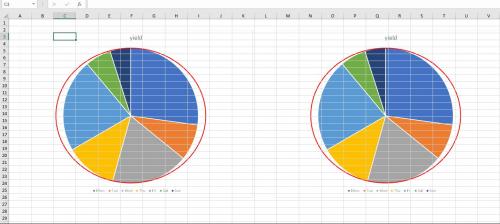
Figure 1.
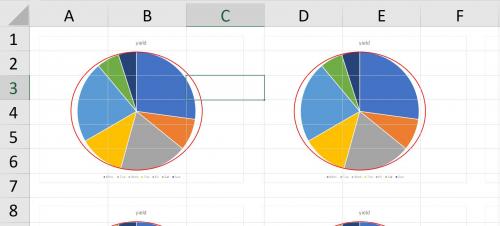
Figure 2.
Got a version of Excel that uses the ribbon interface (Excel 2007 or later)? This site is for you! If you use an earlier version of Excel, visit our ExcelTips site focusing on the menu interface.
FREE SERVICE: Get tips like this every week in ExcelTips, a free productivity newsletter. Enter your address and click "Subscribe."
Copyright © 2026 Sharon Parq Associates, Inc.
 Please Note:
This article is written for users of the following Microsoft Excel versions: 2007, 2010, 2013, 2016, 2019, and 2021. If you are using an earlier version (Excel 2003 or earlier), this tip may not work for you. For a version of this tip written specifically for earlier versions of Excel, click here:
Please Note:
This article is written for users of the following Microsoft Excel versions: 2007, 2010, 2013, 2016, 2019, and 2021. If you are using an earlier version (Excel 2003 or earlier), this tip may not work for you. For a version of this tip written specifically for earlier versions of Excel, click here:
Comments