
Bonnie has a worksheet that contains a large number of text values. She wonders if it is possible to use a conditional format to highlight cells that contain text that is longer than 25 characters. Due to restrictions at her company, she needs to do this without using a macro.
This is quite easy to do without a macro, but you do need to set up a conditional formatting rule that relies on a formula. Follow these steps:
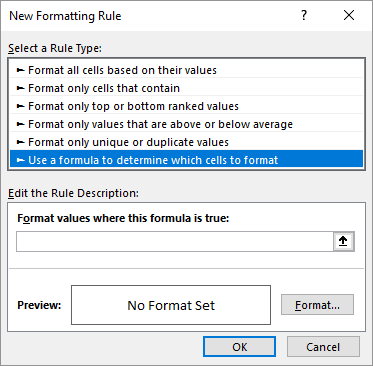
Figure 1. The New Formatting Rule dialog box.
The formula you use in step 6 should reference the active cell in the range you selected in step 1. In this example, it assumes that the active cell is A1, but you should replace it with the cell that is appropriate for the cells you selected. In addition, you can modify the number of characters from 25 to whatever fits your needs.
If it is possible that some of the cells in the range could contain numeric values, then you may want the change the step 6 formula slightly:
=AND(ISTEXT(A1),LEN(A1)>25)
The formula checks that the cell contains text and its length. In this case, there are two references to cell A1 that should be modified to reflect the active cell in the cell range you selected.
ExcelTips is your source for cost-effective Microsoft Excel training. This tip (13460) applies to Microsoft Excel 2007, 2010, 2013, 2016, 2019, 2021, 2024, and Excel in Microsoft 365.

Create Custom Apps with VBA! Discover how to extend the capabilities of Office 365 applications with VBA programming. Written in clear terms and understandable language, the book includes systematic tutorials and contains both intermediate and advanced content for experienced VB developers. Designed to be comprehensive, the book addresses not just one Office application, but the entire Office suite. Check out Mastering VBA for Microsoft Office 365 today!
Conditional formatting is a great tool you can use to customzie your worksheets. When you want to test whether a value in ...
Discover MoreYou can use conditional formatting to add shading to various cells in your worksheet. This tip shows how you can shade ...
Discover MoreIf an error exists in a formula tucked inside a conditional format, you may never know it is there. There are ways to ...
Discover MoreFREE SERVICE: Get tips like this every week in ExcelTips, a free productivity newsletter. Enter your address and click "Subscribe."
There are currently no comments for this tip. (Be the first to leave your comment—just use the simple form above!)
Got a version of Excel that uses the ribbon interface (Excel 2007 or later)? This site is for you! If you use an earlier version of Excel, visit our ExcelTips site focusing on the menu interface.
FREE SERVICE: Get tips like this every week in ExcelTips, a free productivity newsletter. Enter your address and click "Subscribe."
Copyright © 2026 Sharon Parq Associates, Inc.

Comments