

Written by Allen Wyatt (last updated December 27, 2025)
This tip applies to Excel 2007, 2010, 2013, 2016, 2019, 2021, 2024, and Excel in Microsoft 365
Doug notes that Excel allows you to add comments to cells, but only if the worksheet is unprotected. He wonders if there is a way to allow the addition of comments in protected worksheets.
There are a few ways you can tackle this problem. The first is to simply modify how you protect your worksheet. Starting with an unprotected worksheet, follow these steps:
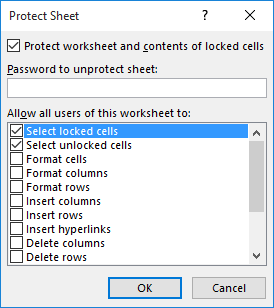
Figure 1. The Protect Sheet dialog box.
Any worksheet user can now add comments to cells. Note that this allows them to add comments to any cells in the worksheet, not just to those cells that you've formatted as unlocked. In addition, users can also modify (add, change, or delete) any other objects in the worksheet, such as drawings and charts.
If you want a more granular approach to dealing with comments in protected worksheets, then you'll need to resort to using a macro. The concept is to have the macro prompt the user for the comment text, unlock the worksheet, insert the comment, and then relock the worksheet.
Public Sub InsertComment()
    Dim sPassword As String
    Dim MyComment As String

    sPassword = "123"

    Set commentCell = ActiveCell
    MyComment = InputBox("Enter your comments", "Comments")

    ActiveSheet.Unprotect Password:=sPassword
    Range(commentCell.Address).AddComment
    Range(commentCell.Address).Comment.Text Text:=MyComment
    ActiveSheet.Protect Password:=sPassword
End Sub
Change the value assigned to the sPassword variable; this is required to unlock and relock the worksheet. Since you are storing the password in the macro, you'll also want to make sure that you take steps to protect the macro (put a password on the VBA module) so others cannot see the password. The macro can be assigned to a shortcut key or added to the Quick Access Toolbar.
Note:
ExcelTips is your source for cost-effective Microsoft Excel training. This tip (12928) applies to Microsoft Excel 2007, 2010, 2013, 2016, 2019, 2021, 2024, and Excel in Microsoft 365.

Excel Smarts for Beginners! Featuring the friendly and trusted For Dummies style, this popular guide shows beginners how to get up and running with Excel while also helping more experienced users get comfortable with the newest features. Check out Excel 2019 For Dummies today!
When using macros to process comments, it is best to know the various ways that those comments can be accessed. This tip ...
Discover MoreComments are a great way to document your worksheets. Excel provides you the tools you need in order to format your ...
Discover MoreExcel allows you to use a picture as a background on a cell comment. This tip looks at how you can paste pictures into a ...
Discover MoreFREE SERVICE: Get tips like this every week in ExcelTips, a free productivity newsletter. Enter your address and click "Subscribe."
There are currently no comments for this tip. (Be the first to leave your comment—just use the simple form above!)
Got a version of Excel that uses the ribbon interface (Excel 2007 or later)? This site is for you! If you use an earlier version of Excel, visit our ExcelTips site focusing on the menu interface.
FREE SERVICE: Get tips like this every week in ExcelTips, a free productivity newsletter. Enter your address and click "Subscribe."
Copyright © 2025 Sharon Parq Associates, Inc.
Comments