

Written by Allen Wyatt (last updated April 18, 2026)
This tip applies to Excel 2007, 2010, 2013, 2016, 2019, 2021, 2024, and Excel in Microsoft 365
Gary is using an Excel worksheet to maintain of list of facilities that his company inspects, along with the dates of all the prior inspections of those facilities. This results in multiple rows for each facility, one row per inspection. Gary needs to delete all the rows for each facility with the exception of the latest inspection date. The result would be one row per facility, showing the latest inspection date.
Perhaps the easiest way to do this is to use Excel's remove duplicate tool. To use the tool for this particular purpose, follow these steps:
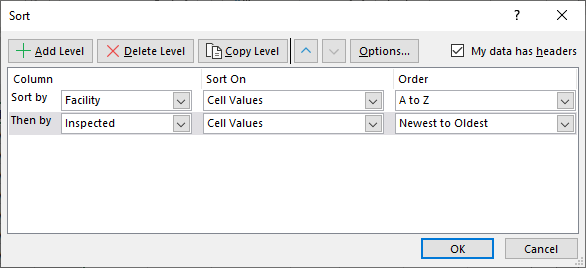
Figure 1. The Sort dialog box.
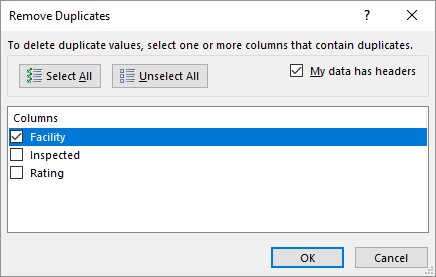
Figure 2. The Remove Duplicates dialog box.
Understand that if you follow these steps it is destructive to your data—when completed, the older data is completely removed from your worksheet. Thus, if you want to maintain the older information for historical purposes, you may want to perform the steps on a duplicate of your data.
Of course, you could also use a different approach that maintains the original data and simply extracts the information that represents the latest inspection dates. Assume, for the purposes of this example, that your data is in columns A:C, with A containing the facility, B containing the inspection date, and C containing the rating achieved on that date. Further, the first row of your data contains headings (Facility, Inspected, and Rating). Somewhere to the right of your data—separated by at least one empty column—place another set of identical headings. (For this example I'll assume that these appear columns E:G.)
In the first column place a unique list of your facilities. In cell F2 place the following formula:
=MAX(($A$2:$A$123=E2)*$B$2:$B$123)
You can replace the two lower range references ($A$123 and $B$123) with whatever lower range is appropriate for your data. Also, you need to enter this as an array formula, meaning you press Ctrl+Shift+Enter to add it to cell F2.
The result in cell F2 will be a number, which is actually a date. (Excel maintains dates internally as numbers.) To get F2 to look like a date, simply apply a date format to the cell.
In cell G2 place the following formula:
=SUMIFS($C$2:$C$123,$A$2:$A$123,E2,$B$2:$B$123,F2)
Again, the lower range references can be replaced with whatever reference is appropriate for your data. This is not an array formula, so you can simply press Enter to put it in cell G2.
Now copy cells F2:G2 down as many rows as appropriate for your facilities. What you end up with is a dynamic list of the most recent inspection results for each facility. (See Figure 3.)
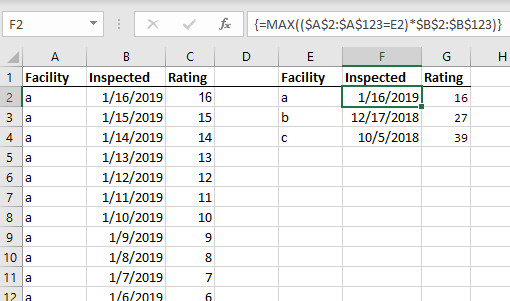
Figure 3. A dynamic list of the latest inspection results.
As you add more data to your inspection list, your "result table" is updated to always show the latest inspection results.
ExcelTips is your source for cost-effective Microsoft Excel training. This tip (13125) applies to Microsoft Excel 2007, 2010, 2013, 2016, 2019, 2021, 2024, and Excel in Microsoft 365.
Solve Real Business Problems Master business modeling and analysis techniques with Excel and transform data into bottom-line results. This hands-on, scenario-focused guide shows you how to use the latest Excel tools to integrate data from multiple tables. Check out Microsoft Excel Data Analysis and Business Modeling today!
Few things are as frustrating as trying to delete rows or columns and having Excel tell you that you can't perform the ...
Discover MoreWhen you are developing a worksheet for others to use, you may want to have entries in a particular cell (or cells) be ...
Discover MoreWhen you select cells in a worksheet, there is a good chance that if you glance at the Task Bar, you'll see some ...
Discover MoreFREE SERVICE: Get tips like this every week in ExcelTips, a free productivity newsletter. Enter your address and click "Subscribe."
2026-04-19 12:17:51
J. Woolley
The Tip's last formula is
=SUMIFS($C$2:$C$123, $A$2:$A$123, E2, $B$2:$B$123, F2)
This does not return the correct result if a facility might have more than one inspection per day. One solution is to include time with date in the Inspected column. Otherwise, use MAXIFS for the maximum rating or MINIFS for the minimum rating or AVERAGEIFS for the average rating on the latest date:
=MAXIFS($C$2:$C$123, $A$2:$A$123, E2, $B$2:$B$123, F2)
=MINIFS($C$2:$C$123, $A$2:$A$123, E2, $B$2:$B$123, F2)
=AVERAGEIFS($C$2:$C$123, $A$2:$A$123, E2, $B$2:$B$123, F2)
Here are alternate array formulas for columns E:G (Excel 2021 or later):
Put this in cell E2:
=UNIQUE($A$2:$A$123)
Format column F as Date and put this in cell F2:
=MAXIFS($B$2:$B$123, $A$2:$A$123, $E$2#)
Put this in cell G2:
=MAXIFS($C$2:$C$123, $A$2:$A$123, $E$2#, $B$2:$B$123, $F$2#)
Use MINIFS or AVERAGEIFS in cell G2 if you prefer.
Got a version of Excel that uses the ribbon interface (Excel 2007 or later)? This site is for you! If you use an earlier version of Excel, visit our ExcelTips site focusing on the menu interface.
FREE SERVICE: Get tips like this every week in ExcelTips, a free productivity newsletter. Enter your address and click "Subscribe."
Copyright © 2026 Sharon Parq Associates, Inc.
Comments