

Written by Allen Wyatt (last updated May 9, 2026)
This tip applies to Excel 2007, 2010, 2013, 2016, 2019, 2021, 2024, and Excel in Microsoft 365
Adam gets a weekly safety report in Excel. One of the columns has photos of things to be fixed inserted into the cells while another column has the name of the responsible person. If Adam filters based on person, he does get a filtered list, but all the photos get piled up one on top of the other. In other words, the result for the photos column is not filtered; the unwanted photos do not collapse with the row when it collapses.
You should be able to fix this easily enough by simply modifying the attributes of your graphics. The steps you follow depend on the version of Excel you are using. If you are using Excel 2007 or Excel 2010, follow these steps:
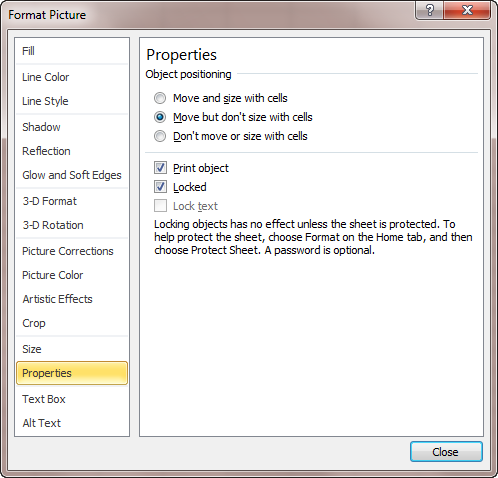
Figure 1. The Properties tab of the Format Picture dialog box.
If you are using Excel 2013 or a later version of the program, use the following steps instead:
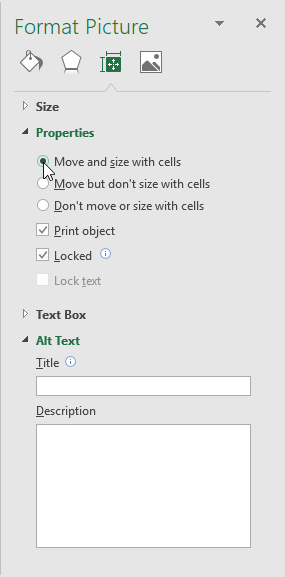
Figure 2. The Properties option of the Format Picture task pane.
That should do it; the pictures should now not pile up when you filter.
If your report is quite large, you might consider using a macro to change the attribute of the images. The following macro will step through each picture in the active worksheet and turn on the attribute:
Sub MoveAndSizePics()
    Dim s As Picture

    On Error Resume Next
    For Each s In ActiveSheet.Pictures
        s.Placement = xlMoveAndSize
    Next s
End Sub
Note:
ExcelTips is your source for cost-effective Microsoft Excel training. This tip (13680) applies to Microsoft Excel 2007, 2010, 2013, 2016, 2019, 2021, 2024, and Excel in Microsoft 365.

Best-Selling VBA Tutorial for Beginners Take your Excel knowledge to the next level. With a little background in VBA programming, you can go well beyond basic spreadsheets and functions. Use macros to reduce errors, save time, and integrate with other Microsoft applications. Fully updated for the latest version of Office 365. Check out Microsoft 365 Excel VBA Programming For Dummies today!
Graphic shapes you add to your worksheet can easily contain text; just click on the shape and start typing away. You may ...
Discover MoreIf you want to create a line in your worksheet that is a specific length and slope, there are a couple of ways you can do ...
Discover MoreExcel allows you to set up graphics so that they are associated with cells and even stay with the cells when the cells ...
Discover MoreFREE SERVICE: Get tips like this every week in ExcelTips, a free productivity newsletter. Enter your address and click "Subscribe."
There are currently no comments for this tip. (Be the first to leave your comment—just use the simple form above!)
Got a version of Excel that uses the ribbon interface (Excel 2007 or later)? This site is for you! If you use an earlier version of Excel, visit our ExcelTips site focusing on the menu interface.
FREE SERVICE: Get tips like this every week in ExcelTips, a free productivity newsletter. Enter your address and click "Subscribe."
Copyright © 2026 Sharon Parq Associates, Inc.
Comments