
Terri would like to generate some statistics about a worksheet. In particular, she would like to know how many cells contain text, how many contain numbers, and how many contain formulas. Terri wonders if there is a built-in way to determine this information.
The answer to this can get a bit tricky. For instance, let's say that you want the number of cells containing numeric values. Traditionally, you can use one of these formulas:
=COUNT(A1:Z99)
=SUMPRODUCT(--ISNUMBER(A1:Z99))
What you get back is the number of cells containing numeric values in the range A1:Z99. (You can change the range as desired.) The problem is, both formulas return any cell that contains numbers regardless of how those numbers got there. For instance, if you have a formula that returns a numeric value, that formula is included in what is returned. However, Terri indicated that she would like to have a count of the number of cells that contain formulas, implying that she doesn't want the numeric result of formulas included in the count of numbers.
The same problem occurs when counting cells containing text. The COUNTIF and ISTEXT functions seem perfect:
=COUNTIF(A1:Z99,"*")
=SUMPRODUCT(--ISTEXT(A1:Z99))
The count returns those cells containing text derived from a formula, as well.
That bring us to determining cells containing formulas. That can be ascertained using the following formula:
=SUMPRODUCT(--ISFORMULA(A1:Z99))
This actually returns just those cells containing formulas, but it is only available in Excel 2013 or later versions. You can combine it into the earlier formulas to return only cells containing numbers and text, ignoring what is returned by formulas:
=SUMPRODUCT(--NOT(ISFORMULA(A1:Z99)),--ISNUMBER(A1:Z99))
=SUMPRODUCT(--NOT(ISFORMULA(A1:Z99)),--ISTEXT(A1:Z99))
If you are using Excel 2021 or later, you can construct a LET statement that can return quite a few stats about a range of data. Here is a mega-formula that returns the number of columns, rows, cells, non-blanks, formulas, numbers, text, and blank cells:
=LET(rng,INDIRECT("A1:Z99"),rows,ROWS(rng),cols,COLUMNS(rng),
total,rows*cols,blanks,COUNTBLANK(rng),nonblank,total-blanks,
formulas,SUMPRODUCT(--ISFORMULA(rng)),
nums,SUMPRODUCT(--ISNUMBER(rng),--NOT(ISFORMULA(rng))),
txt,SUMPRODUCT(--ISTEXT(rng),--NOT(ISFORMULA(rng))),
logs,SUMPRODUCT(--ISLOGICAL(rng),--NOT(ISFORMULA(rng))),
errs,SUMPRODUCT(--ISERROR(rng)),
"Columns: "&TEXT(cols,"#,##0")&" | "&
"Rows: "&TEXT(rows,"#,##0")&" | "&
"Cells: "&TEXT(total,"#,##0")&" | "&
"Blank: "&TEXT(blanks,"#,##0")&" | "&
"Nonblank: "&TEXT(nonblank,"#,##0")&" | "&
"Numbers: "&TEXT(nums,"#,##0")&" | "&
"Text: "&TEXT(txt,"#,##0")&" | "&
"Formulas: "&TEXT(formulas,"#,##0")&" | "&
"Logical: "&TEXT(logs,"#,##0")&" | "&
"Errors: "&TEXT(errs,"#,##0"))
Remember that this is a single formula, even though I am showing it here on multiple rows. It results in this being displayed, with the numbers and percentages varying based on what is in the range A1:Z99:
Columns: 26 | Rows: 99 | Cells: 2,574 | Blank: 2,289 | Nonblank: 285 | Numbers: 135 | Text: 96 | Formulas: 54 | Logical: 0 | Errors: 0
If Terri prefers to simply discover some pre-defined stats for a worksheet, then pressing Ctrl+Shift+G will display the Workbook Statistics dialog box. (The dialog box is also available by clicking the Workbook Statistics tool on the Review tab of the ribbon.) The stats it provides are quite rudimentary and may not fit Terri's needs. To determine the number of cells containing the various types of data, she can use the Go To capabilities of the program.
At this point, you can use the check boxes—Numbers, Text, Logical, and Errors—to indicate what type of constants you want to include in your search. For instance, if you want to know how many cells contain numbers, make sure that only that check box is selected. When you click on OK, Excel selects those cells and displays in the status bar a count of how many cells were selected.
You can repeat this process for each of the other types of content you want. If you prefer, in step 3 you can click Formulas in order to determine how many formulas there are in the worksheet.
Finally, if you have a version of Microsoft 365 in an enterprise plan, then you can get detailed stats on an entire workbook by using Workbook Analysis. This is part of the Spreadsheet Inquire add-in, which you can find more information about here:
https://support.microsoft.com/en-us/excel/analyze-a-workbook-with-spreadsheet-inquire
ExcelTips is your source for cost-effective Microsoft Excel training. This tip (13991) applies to Microsoft Excel 2013, 2016, 2019, 2021, 2024, and Excel in Microsoft 365.
Solve Real Business Problems Master business modeling and analysis techniques with Excel and transform data into bottom-line results. This hands-on, scenario-focused guide shows you how to use the latest Excel tools to integrate data from multiple tables. Check out Microsoft Excel Data Analysis and Business Modeling today!
When you add a new worksheet to a workbook, it receives a meaningful name such as "Sheet4" or "Sheet17." If you want to ...
Discover MoreIf you want someone to not be able to move from one worksheet to another in a workbook, you've got your work cut out for ...
Discover MoreIf you need to copy a cell from one worksheet to a bunch of other worksheets, the work can quickly get tedious. Make the ...
Discover MoreFREE SERVICE: Get tips like this every week in ExcelTips, a free productivity newsletter. Enter your address and click "Subscribe."
2026-08-04 15:24:01
J. Woolley
Be careful with the Tip's counting methods if your worksheet contains dynamic array formulas. Here's an example (see Figure 1 below)
The dynamic array formula =SEQUENCE(5,2) in cell A2 has spill range A2:B6. Using a formula to count numbers in the spill range yields 10 as expected, but the SUMPRODUCT count of formulas in A2:B6 is just 1 (the parent formula in cell A2). Therefore, the Tip's SUMPRODUCT formula "to return only cells containing numbers..., ignoring what is returned by formulas" would return 9 as if all cells in the spill range except A2 contained number constants.
Go To Special for Formulas with Numbers also selects only A2 within A2:B6, but it knows none of the Numbers in the spill range are Constants. The other 9 numbers are simply not counted by Go To Special.
Workbook Statistics (Ctrl+Shift+G) counts 10 formulas in the A2:B6 spill range, but only the worksheet's cumulative count is reported; there are 4 formulas in C2:D3 plus 1 in A1 (see Figure 2 below)
When a dynamic array spill range contains text instead of numbers, the results are similar.
The Tip's counting methods do not have the same issues when dealing with CSE array formulas (see Figure 3 below)
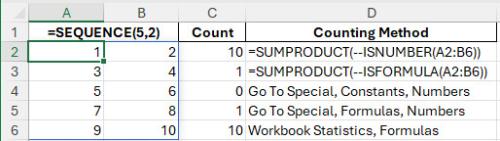
Figure 1.
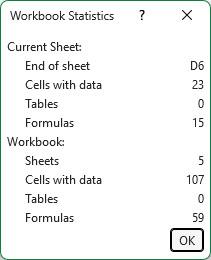
Figure 2.
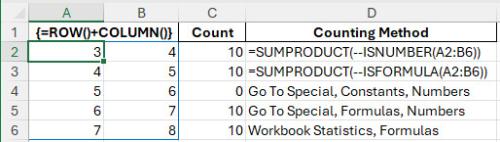
Figure 3.
2026-08-02 14:22:26
J. Woolley
The Tip says, "1. Press Ctrl+G. Excel displays the Go To tab of the Find and Replace dialog box." I don't find that tab in my Find and Replace dialog box, but Ctrl+G (or F5) does open my Go To dialog. Later the Tip says, "...Excel selects those cells and displays in the status bar a count of how many cells were selected." If you don't see a count, then right-click the status bar and confirm Count is enabled. Curiously, the status bar will not display a count if the number of selected cells is 1, but if the count is 0 an error is reported after clicking OK in the Go To Special dialog. For more on this subject including screen shots, see https://excelribbon.tips.net/T013330_Counting_Cells_Containing_a_Formula.html
2026-08-01 14:54:58
J. Woolley
The Tip's formulas all reference the range A1:Z99 on the active worksheet. If any of these formulas is located within that range it will create a circular reference with confusing results. Therefore, each of the Tip's formulas must be located below row 99 or to the right of column Z on the active worksheet.
Alternatively, if the reference range is on Sheet1 (for example), then the formulas can be located on a different sheet by referencing the range Sheet1!A1:Z99 like this
=COUNT(Sheet1!A1:Z99)
=SUMPRODUCT(--ISNUMBER(Sheet1!A1:Z99))
etc.
Modern versions of Excel can replace the SUMPRODUCT formula with this
=SUM(--ISNUMBER(Sheet1!A1:Z99))
Similarly, numeric constants can be counted like this
=SUM(NOT(ISFORMULA(Sheet1!A1:Z99))*ISNUMBER(Sheet1!A1:Z99))
I believe older versions need to enter these last two as CSE array formulas using Ctrl+Shift+Enter.
Notice the Tip's last formula can be written like this
=LET(rng, INDIRECT("Sheet1!A1:Z99"), ...
or more directly like this
=LET(rng, Sheet1!A1:Z99, ...
Got a version of Excel that uses the ribbon interface (Excel 2007 or later)? This site is for you! If you use an earlier version of Excel, visit our ExcelTips site focusing on the menu interface.
FREE SERVICE: Get tips like this every week in ExcelTips, a free productivity newsletter. Enter your address and click "Subscribe."
Copyright © 2026 Sharon Parq Associates, Inc.

Comments