

Written by Allen Wyatt (last updated February 5, 2022)
This tip applies to Excel 2007, 2010, 2013, 2016, 2019, 2021, and Excel in Microsoft 365
Victor received a protected worksheet. When he tries to enable editing, the worksheet is erased to a blank sheet. There are no macros listed in the macro drop-down list, so Victor doesn't believe it is a macro that is doing the erasing. He wonders what he can do to edit and retain the worksheet.
Chances are good that there is some sort of macro at play in the workbook. It is important to realize that not all macros show up in the Macros dialog box; they can also be in other places in the workbook. A good indicator is the format in which the workbook is saved. If it has an XLSM or XLSB (as opposed to XLSX) file extension, then it is capable of holding macros and may very well contain them.
That being said, there are a few things you can try. First, it might be as simple as going back to whoever created the workbook and asking for a copy that is not protected. If going back to the source is not possible, then you could change the macro security settings on your system and try opening the workbook. Start Excel and display the Developer tab of the ribbon. Near the left side of the ribbon, click the Macro Security tool in the Code group. This displays the Trust Center. (See Figure 1.)
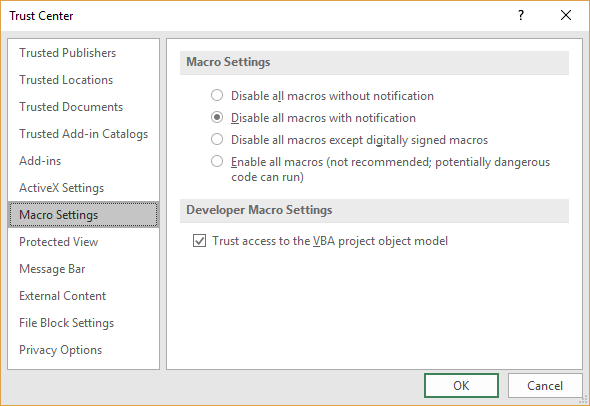
Figure 1. The Trust Center dialog box.
In the Macro Settings area, click the Disable All Macros without Notification, which is the most stringent security setting you can use in Excel. Click OK to close the dialog box, and then open the workbook. Excel should automatically disable any macros it contains and you may be able to unprotect the worksheet as you desire.
If this still doesn't work, you might try copying the worksheet to a different workbook. Right-click the worksheet tab, choose Move or Copy, and then use the settings in the resulting dialog box to make a copy of the worksheet into a brand new workbook. Close the original workbook, and you will probably be able to work with the copy just fine.
You may also want to try opening the workbook while the Shift key is pressed. This method of opening a workbook disables event handler macros.
If all else fails, open a new workbook beside the original one (so both are visible at once), select all the cells in the original worksheet and press Ctrl+C. Now, select a cell in the new workbook and use Paste Special to Paste Values. You loose formatting and formulas using this technique, but you are able to retain the values to work with in the new workbook.
ExcelTips is your source for cost-effective Microsoft Excel training. This tip (3134) applies to Microsoft Excel 2007, 2010, 2013, 2016, 2019, 2021, and Excel in Microsoft 365.

Best-Selling VBA Tutorial for Beginners Take your Excel knowledge to the next level. With a little background in VBA programming, you can go well beyond basic spreadsheets and functions. Use macros to reduce errors, save time, and integrate with other Microsoft applications. Fully updated for the latest version of Office 365. Check out Microsoft 365 Excel VBA Programming For Dummies today!
If you share a workbook with others in your office, you will probably want to make sure that some of the worksheets don't ...
Discover MoreWant to hide certain columns within a worksheet so the contents are not visible to others? The answer lies in formatting ...
Discover MoreExcel allows you to protect your worksheets so they can only be changed as you want to have happen. If you unprotect a ...
Discover MoreFREE SERVICE: Get tips like this every week in ExcelTips, a free productivity newsletter. Enter your address and click "Subscribe."
There are currently no comments for this tip. (Be the first to leave your comment—just use the simple form above!)
Got a version of Excel that uses the ribbon interface (Excel 2007 or later)? This site is for you! If you use an earlier version of Excel, visit our ExcelTips site focusing on the menu interface.
FREE SERVICE: Get tips like this every week in ExcelTips, a free productivity newsletter. Enter your address and click "Subscribe."
Copyright © 2025 Sharon Parq Associates, Inc.
Comments