
Please Note: This article is written for users of the following Microsoft Excel versions: 2007, 2010, 2013, 2016, 2019, 2021, 2024, and Excel in Microsoft 365. If you are using an earlier version (Excel 2003 or earlier), this tip may not work for you. For a version of this tip written specifically for earlier versions of Excel, click here: Running a Macro When a Worksheet is Deactivated.

Written by Allen Wyatt (last updated January 3, 2026)
This tip applies to Excel 2007, 2010, 2013, 2016, 2019, 2021, 2024, and Excel in Microsoft 365
It is possible to configure Excel so that a macro of your choosing is executed every time a particular worksheet is deactivated. What does that mean? Simply that a macro can be run every time you click on a worksheet tab to leave the current sheet. There are two ways you can do this. Here's the first method:
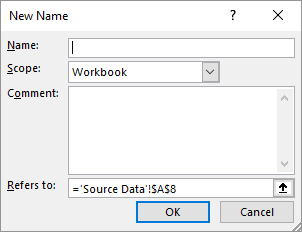
Figure 1. The New Name dialog box.
The second method is to rely on the Worksheet_Deactivate event. Right-click the worksheet's tab (at the bottom of the Excel window) and choose Code Window from the resulting options. This opens the Visual Basic Editor and you can then put the following into the Code window:
Private Sub Worksheet_Deactivate()
    Call Update_PL
End Sub
This, again, assumes that the macro you want to run is called Update_PL. You can then close the Visual Basic Editor.
Remember that the macro you set up using either of these approaches is run every time the worksheet is deactivated, not just the first time. Think about how you use Excel; if you spend a fair amount of time hopping between worksheets in a workbook or between workbooks, it is possible to deactivate a worksheet several dozen times during the course of a session.
Note:
ExcelTips is your source for cost-effective Microsoft Excel training. This tip (6138) applies to Microsoft Excel 2007, 2010, 2013, 2016, 2019, 2021, 2024, and Excel in Microsoft 365. You can find a version of this tip for the older menu interface of Excel here: Running a Macro When a Worksheet is Deactivated.

Program Successfully in Excel! This guide will provide you with all the information you need to automate any task in Excel and save time and effort. Learn how to extend Excel's functionality with VBA to create solutions not possible with the standard features. Includes latest information for Excel 2024 and Microsoft 365. Check out Mastering Excel VBA Programming today!
Macros are often used to process the data stored in a worksheet. Some of these processing needs can be pretty specific to ...
Discover MoreNeed to know the current hour of the day? You can derive the information in your macros by using the Hour function, as ...
Discover MoreIt can be frustrating when you get error messages doing something that you previously did with no errors. If you get an ...
Discover MoreFREE SERVICE: Get tips like this every week in ExcelTips, a free productivity newsletter. Enter your address and click "Subscribe."
2026-01-04 10:08:41
J. Woolley
@Dave Bonin
"Is there a list of the available events available?" Please experiment, make a list, and let us know.
2026-01-03 12:45:58
Dave Bonin
I had never seen the [worksheet]!Auto_Deactivate with a defined name approach before.
Is there a list of the available events available?
Any idea on which approach is better and when:
1) [worksheet]!Auto_Deactivate with a defined name
2) Worksheet_Deactivate event
Got a version of Excel that uses the ribbon interface (Excel 2007 or later)? This site is for you! If you use an earlier version of Excel, visit our ExcelTips site focusing on the menu interface.
FREE SERVICE: Get tips like this every week in ExcelTips, a free productivity newsletter. Enter your address and click "Subscribe."
Copyright © 2026 Sharon Parq Associates, Inc.
 Please Note:
This article is written for users of the following Microsoft Excel versions: 2007, 2010, 2013, 2016, 2019, 2021, 2024, and Excel in Microsoft 365. If you are using an earlier version (Excel 2003 or earlier), this tip may not work for you. For a version of this tip written specifically for earlier versions of Excel, click here:
Please Note:
This article is written for users of the following Microsoft Excel versions: 2007, 2010, 2013, 2016, 2019, 2021, 2024, and Excel in Microsoft 365. If you are using an earlier version (Excel 2003 or earlier), this tip may not work for you. For a version of this tip written specifically for earlier versions of Excel, click here:
Comments