
Please Note: This article is written for users of the following Microsoft Excel versions: 2007, 2010, 2013, 2016, 2019, 2021, 2024, and Excel in Microsoft 365. If you are using an earlier version (Excel 2003 or earlier), this tip may not work for you. For a version of this tip written specifically for earlier versions of Excel, click here: Unwanted Hyperlinks.

Written by Allen Wyatt (last updated January 3, 2026)
This tip applies to Excel 2007, 2010, 2013, 2016, 2019, 2021, 2024, and Excel in Microsoft 365
One of the things that Excel does automatically is to recognize URLs and e-mail addresses as something special. When you input one of these, Excel formats it as an active hyperlink. This behavior can be rather bothersome, particularly if you need to enter quite a few e-mail addresses or URLs in Excel.
There are several ways you can get around this behavior. The first (and perhaps easiest method) is to simply change the way in which you input URLs and e-mail addresses. When you enter one, start it with an apostrophe. Thus, instead of entering jdoe@xyz.com, I would enter 'jdoe@xyz.com. The only difference is the leading apostrophe. Excel does not display the apostrophe in the worksheet, only in the formula bar. In addition, the address is treated like any other text in the worksheet.
The second method is to go ahead and input your address (e-mail or URL) as you normally would. When you press Enter or Tab to move to the next cell, Excel formats the address as a hyperlink. If you immediately press Ctrl+Z, the hyperlink is removed, but the address remains.
Another method is to simply remove the hyperlink after it is created by Excel. To do this, just right-click on the hyperlink and then choose Remove Hyperlink from the resulting Context menu.
You can also turn off automatic hyperlink creation. Follow these steps:
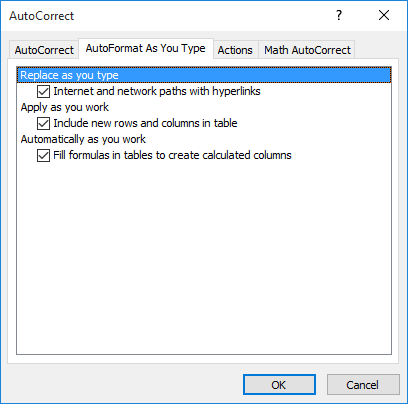
Figure 1. The AutoFormat As You Type tab of the AutoCorrect dialog box.
ExcelTips is your source for cost-effective Microsoft Excel training. This tip (8666) applies to Microsoft Excel 2007, 2010, 2013, 2016, 2019, 2021, 2024, and Excel in Microsoft 365. You can find a version of this tip for the older menu interface of Excel here: Unwanted Hyperlinks.

Excel Smarts for Beginners! Featuring the friendly and trusted For Dummies style, this popular guide shows beginners how to get up and running with Excel while also helping more experienced users get comfortable with the newest features. Check out Excel 2019 For Dummies today!
Need to change the various targets of a group of hyperlinks? Getting at the underlying link can seem challenging, but it ...
Discover MoreWhen you copy workbooks that contain links, you may be at a loss as to how to update those links. There are a couple of ...
Discover MoreExcel allows you to define hyperlinks in your worksheets, and these can target specific cells on other worksheets. Here ...
Discover MoreFREE SERVICE: Get tips like this every week in ExcelTips, a free productivity newsletter. Enter your address and click "Subscribe."
2026-01-03 06:58:51
Craig Buback
I loved this tip regarding eliminating unwanted hyperlinks. I have a spreadsheet that has multiple email addresses that show up as hyperlinks. I had previously gone through and manually clicked on each one to turn the hyperlink off (prior to seeing this tip). When I saw this tip I did a global Find and Replace with adding the apostrophe before the email address. For every email, the apostrophe was successfully added proceeding the email. However, for about 10 to 15%, they came back as a clickable hyperlink in the ss cell. I had to go back and manually turn the hyperlink back
Got a version of Excel that uses the ribbon interface (Excel 2007 or later)? This site is for you! If you use an earlier version of Excel, visit our ExcelTips site focusing on the menu interface.
FREE SERVICE: Get tips like this every week in ExcelTips, a free productivity newsletter. Enter your address and click "Subscribe."
Copyright © 2026 Sharon Parq Associates, Inc.
 Please Note:
This article is written for users of the following Microsoft Excel versions: 2007, 2010, 2013, 2016, 2019, 2021, 2024, and Excel in Microsoft 365. If you are using an earlier version (Excel 2003 or earlier), this tip may not work for you. For a version of this tip written specifically for earlier versions of Excel, click here:
Please Note:
This article is written for users of the following Microsoft Excel versions: 2007, 2010, 2013, 2016, 2019, 2021, 2024, and Excel in Microsoft 365. If you are using an earlier version (Excel 2003 or earlier), this tip may not work for you. For a version of this tip written specifically for earlier versions of Excel, click here:
Comments