
Please Note: This article is written for users of the following Microsoft Excel versions: 2007, 2010, 2013, 2016, 2019, 2021, 2024, and Excel in Microsoft 365. If you are using an earlier version (Excel 2003 or earlier), this tip may not work for you. For a version of this tip written specifically for earlier versions of Excel, click here: Excel Refuses to Put Page Breaks between Subtotal Groups.

Written by Allen Wyatt (last updated March 1, 2026)
This tip applies to Excel 2007, 2010, 2013, 2016, 2019, 2021, 2024, and Excel in Microsoft 365
Sandy noted that when she inserts subtotals into her worksheet, she usually ticks the Page Break Between Groups checkbox. It doesn't seem, however, that the page breaks are inserted. When Sandy looks at the worksheet in both Print Preview and Page Break Preview, Excel does not show the page breaks as being present.
The only time that this behavior should occur is if you direct Excel (in the Page Setup options) to fit the printout to a specific number of pages. You can check to see if this is the case in this manner:
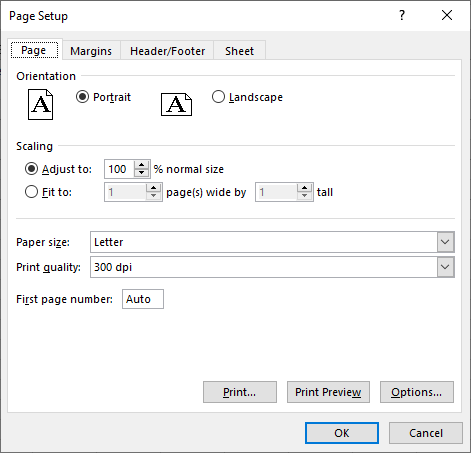
Figure 1. The Page tab of the Page Setup dialog box.
The reason that you need to make this change is that if you have your page setup configured to fit your printout to a specific number of pages, Excel basically ignores any page breaks in your worksheet.
ExcelTips is your source for cost-effective Microsoft Excel training. This tip (8702) applies to Microsoft Excel 2007, 2010, 2013, 2016, 2019, 2021, 2024, and Excel in Microsoft 365. You can find a version of this tip for the older menu interface of Excel here: Excel Refuses to Put Page Breaks between Subtotal Groups.

Program Successfully in Excel! This guide will provide you with all the information you need to automate any task in Excel and save time and effort. Learn how to extend Excel's functionality with VBA to create solutions not possible with the standard features. Includes latest information for Excel 2024 and Microsoft 365. Check out Mastering Excel VBA Programming today!
The Convert Text to Columns capabilities of Excel are very helpful when pulling apart information. When working with ...
Discover MoreWant to keep track of the changes other people make to your workbook or even your own changes? Excel makes gathering this ...
Discover MoreThe standard way to customize Excel is to add tools to the Quick Access Toolbar. The program provides only a limited ...
Discover MoreFREE SERVICE: Get tips like this every week in ExcelTips, a free productivity newsletter. Enter your address and click "Subscribe."
2026-03-01 18:20:30
J. Woolley
Excel has three standard workbook views: Normal, Page Break Preview, and Page Layout. Page breaks are not visible in Normal view until one of the other views has been selected, which enables a worksheet specific option found under File > Options > Advanced > Display options.... That option is also enabled by File > Print (Ctrl+P), which activates Print Preview, or by inserting Subtotals with "Page break between groups." Once enabled, Normal view page breaks persist for that worksheet until the option is disabled or the file is closed. The option's current setting is not saved; it is disabled by default.
My Excel Toolbox includes the TogglePageBreaks macro to enable or disable page break visibility for the active worksheet in Normal view. The keyboard shortcut is Ctrl+T P B. Undo (Ctrl+Z) is supported. Here's an abbreviated version:
Sub TogglePageBreaks()
Const myName As String = "TogglePageBreaks"
If TypeName(ActiveSheet) <> "Worksheet" Then Beep: Exit Sub
With ActiveSheet
.DisplayPageBreaks = (Not .DisplayPageBreaks)
End With
Application.OnUndo myName, (ThisWorkbook.Name & "!" & myName)
End Sub
See https://sites.google.com/view/MyExcelToolbox
2026-02-28 15:26:58
J. Woolley
The Tip discusses subtotals and the "page break between groups button" (it's actually a checkbox). For more on this subject, see https://support.microsoft.com/en-gb/Search/results?query=Insert+subtotals
Got a version of Excel that uses the ribbon interface (Excel 2007 or later)? This site is for you! If you use an earlier version of Excel, visit our ExcelTips site focusing on the menu interface.
FREE SERVICE: Get tips like this every week in ExcelTips, a free productivity newsletter. Enter your address and click "Subscribe."
Copyright © 2026 Sharon Parq Associates, Inc.
 Please Note:
This article is written for users of the following Microsoft Excel versions: 2007, 2010, 2013, 2016, 2019, 2021, 2024, and Excel in Microsoft 365. If you are using an earlier version (Excel 2003 or earlier), this tip may not work for you. For a version of this tip written specifically for earlier versions of Excel, click here:
Please Note:
This article is written for users of the following Microsoft Excel versions: 2007, 2010, 2013, 2016, 2019, 2021, 2024, and Excel in Microsoft 365. If you are using an earlier version (Excel 2003 or earlier), this tip may not work for you. For a version of this tip written specifically for earlier versions of Excel, click here:
Comments