
Please Note: This article is written for users of the following Microsoft Excel versions: 2007, 2010, 2013, 2016, 2019, 2021, 2024, and Excel in Microsoft 365. If you are using an earlier version (Excel 2003 or earlier), this tip may not work for you. For a version of this tip written specifically for earlier versions of Excel, click here: Conditionally Formatting for Multiple Date Comparisons.

Written by Allen Wyatt (last updated May 16, 2026)
This tip applies to Excel 2007, 2010, 2013, 2016, 2019, 2021, 2024, and Excel in Microsoft 365
Bev is having a problem setting up a conditional format for some cells. What she wants to do is to format the cells so that if they contain a date before today, they will use a bold red font; if they contain a date after today, they will use a bold green font. Bev cannot get both conditions to work properly.
What is probably happening here is a frustrating artifact of the way that Excel parses the conditions you enter. If you do a "less than" or "greater than" comparison of dates in your rules, you may not get exactly what you want. To set up the rules correctly, follow these steps:
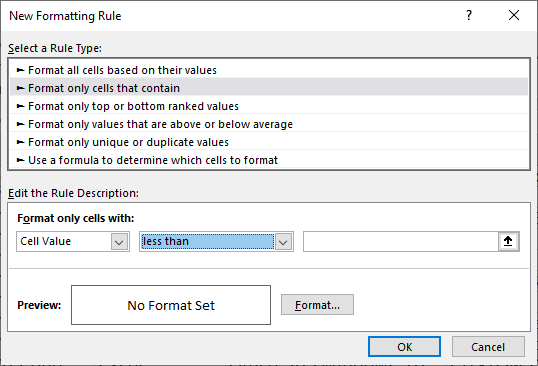
Figure 1. The New Formatting Rule dialog box.
The key to making this all happen is in steps 6 and 12; they control what comparison is done to today's date. Any dates prior to today will be bold red and any after today will be bold green. If the date is today's date, then it will not be conditionally formatted.
ExcelTips is your source for cost-effective Microsoft Excel training. This tip (12929) applies to Microsoft Excel 2007, 2010, 2013, 2016, 2019, 2021, 2024, and Excel in Microsoft 365. You can find a version of this tip for the older menu interface of Excel here: Conditionally Formatting for Multiple Date Comparisons.

Best-Selling VBA Tutorial for Beginners Take your Excel knowledge to the next level. With a little background in VBA programming, you can go well beyond basic spreadsheets and functions. Use macros to reduce errors, save time, and integrate with other Microsoft applications. Fully updated for the latest version of Office 365. Check out Microsoft 365 Excel VBA Programming For Dummies today!
Conditional formatting is a great tool for changing the format of cells based on whether certain conditions (rules) are ...
Discover MoreSetting up conditional formatting can be challenging under some circumstances, but once set it can work great. Unless, of ...
Discover MoreIf you need to find whether the duration between two dates is greater than the average of all durations, you'll find the ...
Discover MoreFREE SERVICE: Get tips like this every week in ExcelTips, a free productivity newsletter. Enter your address and click "Subscribe."
There are currently no comments for this tip. (Be the first to leave your comment—just use the simple form above!)
Got a version of Excel that uses the ribbon interface (Excel 2007 or later)? This site is for you! If you use an earlier version of Excel, visit our ExcelTips site focusing on the menu interface.
FREE SERVICE: Get tips like this every week in ExcelTips, a free productivity newsletter. Enter your address and click "Subscribe."
Copyright © 2026 Sharon Parq Associates, Inc.
 Please Note:
This article is written for users of the following Microsoft Excel versions: 2007, 2010, 2013, 2016, 2019, 2021, 2024, and Excel in Microsoft 365. If you are using an earlier version (Excel 2003 or earlier), this tip may not work for you. For a version of this tip written specifically for earlier versions of Excel, click here:
Please Note:
This article is written for users of the following Microsoft Excel versions: 2007, 2010, 2013, 2016, 2019, 2021, 2024, and Excel in Microsoft 365. If you are using an earlier version (Excel 2003 or earlier), this tip may not work for you. For a version of this tip written specifically for earlier versions of Excel, click here:
Comments