
When David opens a workbook, a message appears that says, "Unable to Refresh: We couldn't get updated values from a linked workbook." Next to this is a button to manage workbook links. David can click the button and go through the refresh process. His master workbook has over 2,500 links to about 100 other workbooks, so every day David spends time reconnecting links manually because the refresh does not work completely. This began about a year ago, and he has assumed Microsoft is aware of the problem and working on a solution. Now he is wondering if he is wrong and how long he should expect to spend time reconnecting.
Most people learned years ago that it does no good to wait for Microsoft. They will act when they feel it appropriate to act, and that timing typically cannot be affected unless you are a customer that orders 25,000 copies of Microsoft Office annually. (I'm not being cynical, just practical—large companies realistically only pay attention to very large customers. The rest of us are simply along for the ride.)
That being said, it can be frustrating for links to not update as you expect, especially with so many! One thing you might try is to turn off automatic updating of links by following these steps:
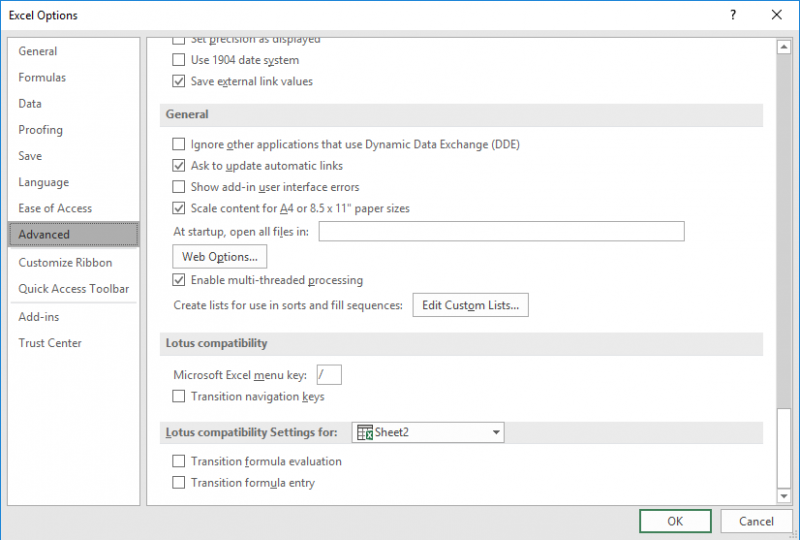
Figure 1. The Advanced options in the Excel Options dialog box.
Now, open the workbook that you've historically had problems with. Excel will not try to update the links. At this point you could run a macro such as this one:
Sub RefreshExternalLinks()
    Dim link As Variant

    Application.ScreenUpdating = False
    Application.Calculation = xlCalculationManual
    Application.DisplayAlerts = False
    On Error Resume Next
    For Each link In ThisWorkbook.LinkSources(xlExcelLinks)
        ThisWorkbook.UpdateLink Name:=link, Type:=xlExcelLinks
    Next link
    On Error GoTo 0
    Application.DisplayAlerts = True
    Application.Calculation = xlCalculationAutomatic
    Application.ScreenUpdating = True
    MsgBox "Refresh completed.", vbInformation
End Sub
The macro steps through every link and updates it. If an error occurs in trying to update the link, then Excel skips that one and goes on to the next one. The result is that you should end up with all the links updated that can be updated.
The problem, of course, is that the macro doesn't identify what link(s) may be causing the problem. If you want some help in figuring that out, the following variation of the macro might fit the bill:
Sub RefreshLinksReport()
    Dim link As Variant
    Dim sMsg As String

    Application.ScreenUpdating = False
    Application.Calculation = xlCalculationManual
    Application.DisplayAlerts = False

    sMsg = "Refresh completed." & vbCrLf & vbCrLf
    For Each link In ThisWorkbook.LinkSources(xlExcelLinks)
        Err.Clear
        On Error Resume Next
        ThisWorkbook.UpdateLink Name:=link, Type:=xlExcelLinks
        On Error GoTo 0

        If Err.Number <> 0 Then
            sMsg = sMsg & "Failed to update link:" & vbCrLf & _
              "  " & CStr(link) & vbCrLf & _
              "  Error " & Err.Number & ": " & Err.Description & vbCrLf & vbCrLf
        End If
    Next link

    Application.DisplayAlerts = True
    Application.Calculation = xlCalculationAutomatic
    Application.ScreenUpdating = True
    MsgBox sMsg, vbInformation
End Sub
If there is an error opening a link, a message is added to the sMsg string indicating the error. When the macro is done running, you'll see a report that indicates what errors, if any, occurred. This can help you identify what the exact problem is and the link where the problem arose.
Note:
ExcelTips is your source for cost-effective Microsoft Excel training. This tip (13126) applies to Microsoft Excel 2007, 2010, 2013, 2016, 2019, 2021, 2024, and Excel in Microsoft 365.

Professional Development Guidance! Four world-class developers offer start-to-finish guidance for building powerful, robust, and secure applications with Excel. The authors show how to consistently make the right design decisions and make the most of Excel's powerful features. Check out Professional Excel Development today!
Need to get rid of the links in your workbook but save the values that were retrieved by those links? It could be easy or ...
Discover MoreMake a reference to a hyperlink in a formula, and you may be surprised that the reference doesn't return an active ...
Discover MoreExcel allows you to easily link information from one workbook to another. If you want to get rid of links that may be ...
Discover MoreFREE SERVICE: Get tips like this every week in ExcelTips, a free productivity newsletter. Enter your address and click "Subscribe."
2026-01-28 12:02:40
J. Woolley
To correct the problem in RefreshLinksReport2 previously discussed, here's an improved version of the 'For Each...' loop:
For Each lnk In .LinkSources
nStatus = 11 'Unknown (in case LinkInfo fails)
nStatus = .LinkInfo(lnk, xlLinkInfoStatus)
If nStatus = xlLinkStatusSourceOpen Then
nbr = nbr + 1
Else
.UpdateLink lnk
If Err Then
msg = msg & BL & "Failed: " & lnk
msg = msg & NL & "Status: " & sStatus(nStatus)
Err.Clear
Else
nbr = nbr + 1
End If
End If
cnt = cnt + 1
Next lnk
This better addresses the following issue: When a link source is already open, UpdateLink will fail because Excel automatically updates the link.
2026-01-28 11:22:50
J. Woolley
Oops. Re. the RefreshLinksReport2 macro in my most recent comment below, the 'Err.Clear' statement should be moved down and located just before the 'Next lnk' statement. Sorry about that.
2026-01-27 11:30:24
J. Woolley
Here's an alternate version of the Tip's 2nd macro that provides more useful information when there are no links or UpdateLink fails:
Sub RefreshLinksReport2()
If IsEmpty(ActiveWorkbook.LinkSources) Then
MsgBox "The active workbook has no external links", vbCritical
Exit Sub
End If
Const NL = vbLf, BL = NL & NL
Dim lnk As Variant, nbr As Integer, cnt As Integer, msg As String
Dim sStatus() As String, nStatus As Integer
sStatus = Split("OK,Missing file,Missing sheet,Old,Not calculated," _
& "Indeterminate,Not started,Invalid name,Source is not open," _
& "Source is open,Copied values,Unknown", ",")
Application.DisplayAlerts = False
With ActiveWorkbook
On Error Resume Next
For Each lnk In .LinkSources
nStatus = 11 'Unknown (in case LinkInfo fails)
nStatus = .LinkInfo(lnk, xlLinkInfoStatus)
.UpdateLink lnk
If Err And nStatus <> xlLinkStatusSourceOpen Then
msg = msg & BL & "Failed: " & lnk
msg = msg & NL & "Status: " & sStatus(nStatus)
Err.Clear
Else
nbr = nbr + 1
End If
cnt = cnt + 1
Next lnk
On Error GoTo 0
End With
Application.DisplayAlerts = True
msg = "Successfully refreshed " & nbr & " of " & cnt & " external links" _
& msg
If Len(msg) > 1023 Then msg = Left(msg, 1020) & "..."
MsgBox msg
End Sub
2026-01-25 14:53:49
J. Woolley
Each of the Tip's macros attempt to update links in the workbook containing the macro. This could be confusing if the active workbook is not the one containing the macro. Therefore, 'ThisWorkbook' should be replaced by 'ActiveWorkbook' twice in each macro.
2026-01-25 14:36:36
J. Woolley
The Tip's 2nd macro RefreshLinksReport does not work as intended because the following statement
On Error GoTo 0
clears the Err object nullifying Err.Number; therefore, 'On Error GoTo 0' should be moved down and located just before 'Next link'. Notice the 'Err.Clear' statement is unnecessary. I believe both 'Application.ScreenUpdating = ...' and both 'Application.Calculation = ...' statements are also unnecessary.
For related discussion, see https://excelribbon.tips.net/T007556_Updating_Workbook_Links.html
Got a version of Excel that uses the ribbon interface (Excel 2007 or later)? This site is for you! If you use an earlier version of Excel, visit our ExcelTips site focusing on the menu interface.
FREE SERVICE: Get tips like this every week in ExcelTips, a free productivity newsletter. Enter your address and click "Subscribe."
Copyright © 2026 Sharon Parq Associates, Inc.

Comments