
Please Note: This article is written for users of the following Microsoft Excel versions: 2007, 2010, 2013, 2016, 2019, 2021, 2024, and Excel in Microsoft 365. If you are using an earlier version (Excel 2003 or earlier), this tip may not work for you. For a version of this tip written specifically for earlier versions of Excel, click here: Segregating Numbers According to Their Sign.

Written by Allen Wyatt (last updated January 3, 2026)
This tip applies to Excel 2007, 2010, 2013, 2016, 2019, 2021, 2024, and Excel in Microsoft 365
Are you working with a large set of data consisting of mixed values, some negative and some positive, that you want to separate into columns based on their sign? There are a few ways this can be approached. One method is simply to use a formula in the columns to the right of the mixed column. For instance, if the mixed column is in column A, then you could place the following formula in the cells of column B:
=IF(A2>0,A2,0)
This results in column B only containing values that are greater than zero. In column C you could then use this formula:
=IF(A2<0,A2,0)
This column would only contain values less than zero. The result is two new columns (B and C) that are the same length as the original column. Column B is essentially the same as column A, except that negative values are replaced by zero, while column C replaces positive values with zero.
If you want to end up with columns that only contain negative or positive values (no zeroes), then you can use the filtering capabilities of Excel. Assuming you are using Excel 2021, 2024, or Excel 365 and that the mixed values are in column A, you can use the following formulas in cells B2 and C2, respectively:
=FILTER(A2:A999,A2:A199>0)
=FILTER(A2:A999,A2:A199<0)
You should replace the range in the formulas (A2:A999) with the actual range of values in column A. If you are using an older version of Excel, then you can use the advanced filtering capabilities of the program. Follow these steps:
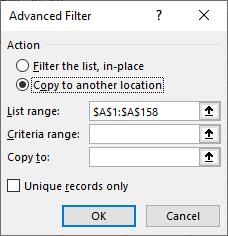
Figure 1. The Advanced Filter dialog box.
You now have the desired two columns of positive and negative values. You can also delete the cells at E1:E2 if you desire.
ExcelTips is your source for cost-effective Microsoft Excel training. This tip (9601) applies to Microsoft Excel 2007, 2010, 2013, 2016, 2019, 2021, 2024, and Excel in Microsoft 365. You can find a version of this tip for the older menu interface of Excel here: Segregating Numbers According to Their Sign.

Best-Selling VBA Tutorial for Beginners Take your Excel knowledge to the next level. With a little background in VBA programming, you can go well beyond basic spreadsheets and functions. Use macros to reduce errors, save time, and integrate with other Microsoft applications. Fully updated for the latest version of Office 365. Check out Microsoft 365 Excel VBA Programming For Dummies today!
Do you need to figure out the rightmost value within a row in which not all cells may contain values? This tip provides a ...
Discover MoreNeed to find an average of the values that fall within a date range? Excel provides a number of ways you can do this, ...
Discover MoreWhen you are working with sequenced values in a list, you’ll often want to take some action based on the top X or ...
Discover MoreFREE SERVICE: Get tips like this every week in ExcelTips, a free productivity newsletter. Enter your address and click "Subscribe."
There are currently no comments for this tip. (Be the first to leave your comment—just use the simple form above!)
Got a version of Excel that uses the ribbon interface (Excel 2007 or later)? This site is for you! If you use an earlier version of Excel, visit our ExcelTips site focusing on the menu interface.
FREE SERVICE: Get tips like this every week in ExcelTips, a free productivity newsletter. Enter your address and click "Subscribe."
Copyright © 2026 Sharon Parq Associates, Inc.
 Please Note:
This article is written for users of the following Microsoft Excel versions: 2007, 2010, 2013, 2016, 2019, 2021, 2024, and Excel in Microsoft 365. If you are using an earlier version (Excel 2003 or earlier), this tip may not work for you. For a version of this tip written specifically for earlier versions of Excel, click here:
Please Note:
This article is written for users of the following Microsoft Excel versions: 2007, 2010, 2013, 2016, 2019, 2021, 2024, and Excel in Microsoft 365. If you are using an earlier version (Excel 2003 or earlier), this tip may not work for you. For a version of this tip written specifically for earlier versions of Excel, click here:
Comments