
Please Note: This article is written for users of the following Microsoft Excel versions: 2007, 2010, 2013, 2016, 2019, 2021, 2024, and Excel in Microsoft 365. If you are using an earlier version (Excel 2003 or earlier), this tip may not work for you. For a version of this tip written specifically for earlier versions of Excel, click here: Entering Data as Thousands.
Richard would like to type a value into a cell and have Excel assume that the value is thousands. For instance, he would like to enter "3" into a cell and have Excel treat the value as 3,000; if he enters "14" into the cell, then Excel should treat it as 14,000.
There are several different ways that this can be handled, depending on how you want the data treated once it is entered. One approach is to change the formatting of the cell into which the values are being entered. You could, for instance, use the following custom format for the cell:
#,##0",000"
Whenever you enter a value in the cell, Excel follows the value with ",000". Thus, enter 27 in the cell and Excel displays 27,000.
The drawback to this approach is that the underlying number is still considered the smaller value. If you later try to add 1 to the cell contents, you don't get 27,001, you get 28,000. You also won't be able to enter decimal values. This means that if you enter 1.23, you don't get 1,230; you instead get 1,000 because the value is treated as an integer before displaying.
A better approach is, perhaps, to change a configuration setting in Excel itself. Follow these steps:
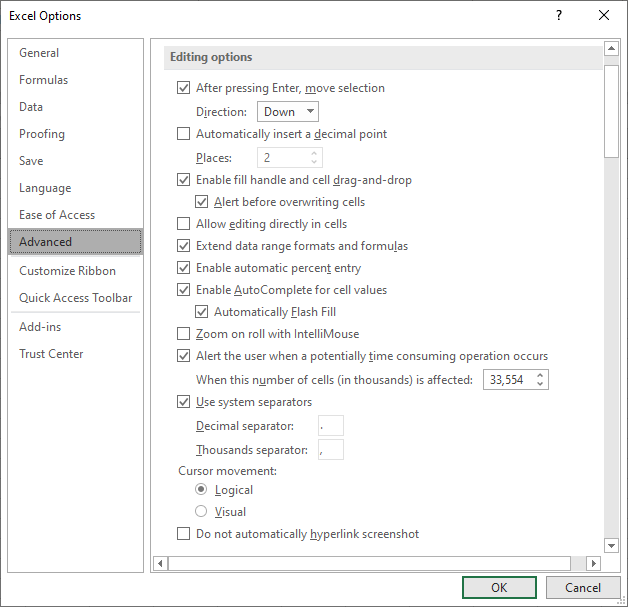
Figure 1. The Advanced options of the Excel Options dialog box.
Now, whenever you enter any information into a cell, Excel automatically multiplies the value by 1,000, provided you don't include a decimal point in what you are entering. This means that if you enter the value 3, Excel actually enters 3,000 into the cell. If you instead enter 1.23, then Excel enters 1.23; it doesn't multiply by 1,000.
If you choose this approach, remember that it is not only data entry on the current worksheet that is affected. This setting affects all data entry on all worksheets from this time forward. If this is not what you want, then you'll need to remember to turn off the setting (clear the check box) when you want to return to normal data entry.
You could, as well, use a macro approach to the problem. For instance, if you are entering only numeric data into the worksheet, you could create a macro that will multiply the contents of a cell by 1,000 every time the cell changes. Right-click the worksheet tab and choose View Code from the resulting Context menu. Then enter the following macro into the code window:
Private Sub Worksheet_Change(ByVal Target As Range)
    Application.EnableEvents = False
    Target = Target * 1000
    Application.EnableEvents = True
End Sub
Perhaps the best solution, though, is to keep things simple. Have a column where you input your values as you want. Then, in another column, use a formula to modify whatever values you entered. For example, you could enter 1.23 into cell A1. In cell B1, then, you could multiply this value by 1,000. The value in cell B1 could then be used within other formulas, elsewhere in your workbook.
Note:
ExcelTips is your source for cost-effective Microsoft Excel training. This tip (9697) applies to Microsoft Excel 2007, 2010, 2013, 2016, 2019, 2021, 2024, and Excel in Microsoft 365. You can find a version of this tip for the older menu interface of Excel here: Entering Data as Thousands.

Create Custom Apps with VBA! Discover how to extend the capabilities of Office 365 applications with VBA programming. Written in clear terms and understandable language, the book includes systematic tutorials and contains both intermediate and advanced content for experienced VB developers. Designed to be comprehensive, the book addresses not just one Office application, but the entire Office suite. Check out Mastering VBA for Microsoft Office 365 today!
When you are copying huge amounts of information, Excel may seem to bog down and it is difficult to know when it is safe ...
Discover MoreAs you enter data in a worksheet, you may want to have Excel automatically move from cell to cell based on the length of ...
Discover MoreExcel supports several types of dashes. This tip describes those different types and explains how to enter them in a cell.
Discover MoreFREE SERVICE: Get tips like this every week in ExcelTips, a free productivity newsletter. Enter your address and click "Subscribe."
2026-06-20 15:09:09
J. Woolley
The Tip's macro is too simple; there are several issues:
1. Every cell that is changed anywhere on its host worksheet will be multiplied by 1000 (scaled), whether it is numeric, logical, or text.
2. If its value is deleted, it will display zero (0).
3. If it is a numeric date or time, it will be scaled.
4. If it is logical, it will be treated as numeric (-1 if TRUE, 0 if FALSE) and scaled.
5. If it is a formula with a numeric result, the formula will be replaced by a constant (the scaled result).
6. If it is text (formula or constant), an error will result and all of the event procedures in all open workbooks will subsequently be ignored until Application.EnableEvents is manually reset True.
Here's an alternate version that will only scale numeric constant values entered within a limited range (A1:A10) that are not date, time, or logical values:
Private Sub Worksheet_Change(ByVal Target As Range)
Const SCALE_RANGE = "A1:A10" 'cells to be scaled; adjust as desired
If Intersect(Target, Range(SCALE_RANGE)) Is Nothing Then Exit Sub
If Target.Cells.Count > 1 Or Target.HasFormula Then Exit Sub
If IsEmpty(Target) Or Not IsNumeric(Target) Then Exit Sub
If IsDate(Target) Or WorksheetFunction.IsLogical(Target) Then Exit Sub
Dim sFormat As String: sFormat = LCase(Target.NumberFormat)
If InStr(sFormat, "h:m") Or InStr(sFormat, "m:s") Then Exit Sub
On Error Resume Next
Application.EnableEvents = False
Target = Target * 1000
Application.EnableEvents = True
On Error GoTo 0
End Sub
Adjust SCALE_RANGE as desired.
2026-06-20 09:12:09
Alan Cannon
That macro didn't work for me with my Excel 365.
Got a version of Excel that uses the ribbon interface (Excel 2007 or later)? This site is for you! If you use an earlier version of Excel, visit our ExcelTips site focusing on the menu interface.
FREE SERVICE: Get tips like this every week in ExcelTips, a free productivity newsletter. Enter your address and click "Subscribe."
Copyright © 2026 Sharon Parq Associates, Inc.
 Please Note:
This article is written for users of the following Microsoft Excel versions: 2007, 2010, 2013, 2016, 2019, 2021, 2024, and Excel in Microsoft 365. If you are using an earlier version (Excel 2003 or earlier), this tip may not work for you. For a version of this tip written specifically for earlier versions of Excel, click here:
Please Note:
This article is written for users of the following Microsoft Excel versions: 2007, 2010, 2013, 2016, 2019, 2021, 2024, and Excel in Microsoft 365. If you are using an earlier version (Excel 2003 or earlier), this tip may not work for you. For a version of this tip written specifically for earlier versions of Excel, click here: 
Comments