
Barry uses Excel to create a report that he prints each week. He needs a way to add small comments, similar to footnotes, that explain information about the report. Barry is looking for the best way to add the footnotes or small comments without cluttering the cells in the worksheet.
I'm going to say it straight out—there is no good way to do footnotes or comments within Excel. By that, I mean that you cannot add footnotes like you can in a Word document, where they are printed at the bottom of the page on which the note is referenced. The best you can do is to try a workaround or two.
If your report is printable on a single page, then you can simply use some cells at the bottom of the data area to type your comments or footnotes. Skip a row, then in the first column of the report enter the word "Notes" and format it as you desire. Under that, you can place your notes, one per row, using the first column for a note number and the second for the note itself. You will, of course, need to add the note numbers at the end of cells in the worksheet, as appropriate. (This may take some fancy formatting and cell usage so that you don't mess up any values in the cells to which you are adding the note numbers.)
Another approach is to add a text box to your report and place the notes within the text box. This is particularly helpful if your report isn't that wide and you want to include notes that are specific to individual pages in the report.
If your report is multiple pages and you want the same notes at the bottom of each page, you can add them to the footer for the page. You can place them in the left-hand or center section of the footer, depending on what looks best to you. Again, if the notes tie to specific cells in the report, you'll need to add the note numbers to those cells. Just remember that the same footer (and thus the same notes) will print on each page of the report.
You can, of course, use the Comments feature of Excel to add, well, "comments" to individual cells. If you want those comments printed with your report, then you can follow these steps:
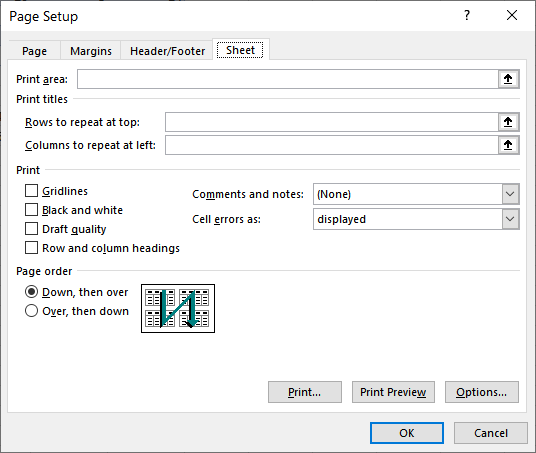
Figure 1. The Sheet tab of the Page Setup dialog box.
In step 4, you may be wondering about the As Displayed On Sheet (notes only) option. You can try this out, if you want, but you may not get the results you expect. The option only applies to notes, not to comments. (All new versions of Excel utilize comments, not notes.) So, your comments will still print at the end of your document.
When I say, "at the end of your document," I mean just that. The comments will print on a separate sheet after your report, and there will be a cell reference next to the printed comment. Thus, for someone to understand what the comment applies to, he or she must look up the cell within the report, even when the printed report won't show any cell or row numbers. This shortcoming, combined with the fact that there is no way to note on the printout a note reference number next to the data to which the comment applies, makes traditional comments almost worthless for Barry's needs.
ExcelTips is your source for cost-effective Microsoft Excel training. This tip (12902) applies to Microsoft Excel 2007, 2010, 2013, 2016, 2019, 2021, 2024, and Excel in Microsoft 365.
Solve Real Business Problems Master business modeling and analysis techniques with Excel and transform data into bottom-line results. This hands-on, scenario-focused guide shows you how to use the latest Excel tools to integrate data from multiple tables. Check out Microsoft Excel Data Analysis and Business Modeling today!
Comments and notes can be very helpful in a worksheet. After they are added, you may want to change what they contain. ...
Discover MoreWhen using macros to process comments, it is best to know the various ways that those comments can be accessed. This tip ...
Discover MoreWant to make your worksheet comments appear a certain way? It's easy to do using techniques you are already familiar with.
Discover MoreFREE SERVICE: Get tips like this every week in ExcelTips, a free productivity newsletter. Enter your address and click "Subscribe."
2026-06-20 10:22:08
Tomek
If it is the printed version you want the comments displayed then you can print your workbook to a pdf file, and add your comments there. For this purpose I use PDF X-Change editor. I have the paid version, but the free version may have enough capabilities for Barry's purpose. The comments can be added in several formats including call-outs that can point to the relevant data. Adobe Reader may have similar functionality, but I rarely use it.
The paid version is reasonably priced, and it allows editing the content, like removing or adding text.
Disclaimer: I have no relation with the company that makes PDF X-CHANGE software but I think it is worth a try.
Got a version of Excel that uses the ribbon interface (Excel 2007 or later)? This site is for you! If you use an earlier version of Excel, visit our ExcelTips site focusing on the menu interface.
FREE SERVICE: Get tips like this every week in ExcelTips, a free productivity newsletter. Enter your address and click "Subscribe."
Copyright © 2026 Sharon Parq Associates, Inc.

Comments