

Written by Allen Wyatt (last updated April 2, 2022)
This tip applies to Excel 2007, 2010, 2013, 2016, 2019, 2021, and Excel in Microsoft 365
Mitch has suddenly lost the row numbers on the far left of his workbooks. He wonders how he can get them back.
This could be a matter as simple as your Excel program window being "off screen" just a bit on the left. If so, then use the mouse to click in the title bar area of the window and drag the window to the right. You can also adjust the size of the program window, if necessary.
There is a setting in Excel that controls the display of row numbers (which Microsoft refers to as "row headers") at the left side of your worksheet. This setting simultaneously controls the display of the column headers at the top of the worksheet. The easiest way to access this setting is to follow these steps:
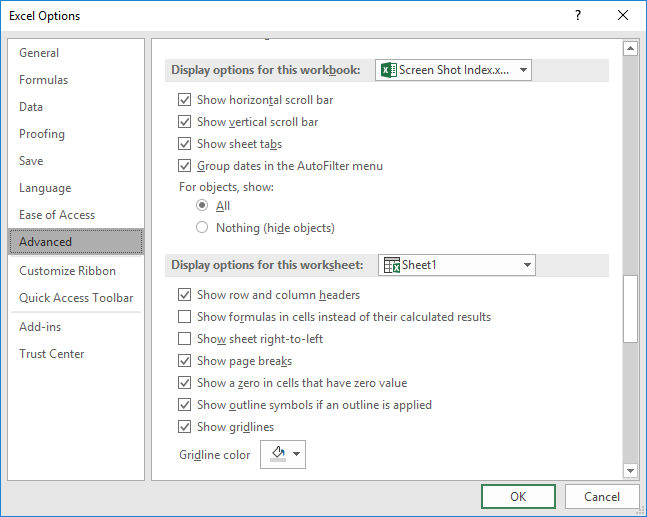
Figure 1. The Advanced options of the Excel Options dialog box.
ExcelTips is your source for cost-effective Microsoft Excel training. This tip (9899) applies to Microsoft Excel 2007, 2010, 2013, 2016, 2019, 2021, and Excel in Microsoft 365.

Dive Deep into Macros! Make Excel do things you thought were impossible, discover techniques you won't find anywhere else, and create powerful automated reports. Bill Jelen and Tracy Syrstad help you instantly visualize information to make it actionable. You’ll find step-by-step instructions, real-world case studies, and 50 workbooks packed with examples and solutions. Check out Microsoft Excel 2019 VBA and Macros today!
Excel allows you to save your workbooks in many different places. By default, it helpfully provides all those places. You ...
Discover MoreNormally the Tab key can be used to move from one cell to another in Excel. If this cell movement doesn't work for you, ...
Discover MoreExcel allows you to make a wide range of customizations to both the Quick Access Toolbar and the ribbon. If you want to ...
Discover MoreFREE SERVICE: Get tips like this every week in ExcelTips, a free productivity newsletter. Enter your address and click "Subscribe."
2022-04-02 10:07:38
J. Woolley
The row/column labels (headers) are toggled ON/OFF by the worksheet’s Window property DisplayHeadings. For the active worksheet, the following VBA statement will toggle both:
ActiveWindow.DisplayHeadings = Not ActiveWindow.DisplayHeadings
To set them ON for all worksheets in the active workbook:
Dim WS as Worksheet
For Each WS In ActiveWorkbook.Worksheets
WS.Activate
ActiveWindow.DisplayHeadings = True
Next WS
My Excel Toolbox includes the WindowDressing macro, which will toggle several such properties for the active worksheet or all worksheets. A screenshot is included in my recent comment added to the following Tip:
https://excelribbon.tips.net/T009308_Controlling_Where_You_Edit_Cell_Contents.html
Got a version of Excel that uses the ribbon interface (Excel 2007 or later)? This site is for you! If you use an earlier version of Excel, visit our ExcelTips site focusing on the menu interface.
FREE SERVICE: Get tips like this every week in ExcelTips, a free productivity newsletter. Enter your address and click "Subscribe."
Copyright © 2026 Sharon Parq Associates, Inc.
Comments