
Nathan has a cell (A1) that contains a sentence. He needs a formula that will return the last word in the sentence. He thought he had the formula, but it also considers the punctuation after the last word as part of the word. Nathan wonders if there is a way, in a formula, to return just the last word.
It is possible to use the SUBSTITUTE function to strip away any trailing punctuation, in this manner:
=SUBSTITUTE(SUBSTITUTE(SUBSTITUTE(TEXTAFTER(A1," ",COUNTA(TEXTSPLIT(A1," "))-1),".",""),"?",""),"!","")
The formula will strip a single period, question mark, or exclamation mark from the end of the text. It won't work if the text in A1 consists of a single word, as it determines word the words in the sentence by the spaces separating the words. It also won't work satisfactorily if there may be multiple punctuation marks at the end of the sentence.
Because the formula uses the TEXTAFTER and TEXTSPLIT functions, it will only work in Excel 2024 and Excel 365. Speaking of which, if you are using Excel 365, then you can call upon the REGEX functions to help. Here, for example, is a formula that may work:
=REGEXEXTRACT(A1, "(\w+)\W*$", 2)
This pattern returns any word, defined by (\w+), where a word consists of consecutive characters consisting of letters, numbers, or underscores. This word can be followed by any number of non-word characters, \W*, at the end of the text, $.
This pattern can lead to some undesired results if your final word contains a dash (as in "first-take"), a contraction (as in "can't" or "don't"), or if you want numbers and underscores eliminated from consideration. In that case, the following will provide a better result:
=TAKE(REGEXEXTRACT(A1,"[a-z]+(-[a-z]+)?('[a-z]+)?",1,1),,-1)
The pattern is more complex, but it basically uses REGEXTRACT to construct an array of each word in A1 that consists of letters and, optionally, a dash or apostrophe. The TAKE function then returns the final element in the array.
If you don't want some of the drawbacks inherent in these approaches or if you want something that will work reliably in older versions of Excel, then your best bet will be to create a user-defined function in VBA:
Function LastWord(cell As Range) As String
    Dim txt As String
    Dim i As Long
    Dim ch As String
    Dim word As String
    Dim started As Boolean

    txt = cell.Value
    word = ""
    started = False

    For i = Len(txt) To 1 Step -1
        ch = Mid(txt, i, 1)
        If ch Like "[A-Za-z-']" Then
            word = ch & word
            started = True
        ElseIf started Then
            Exit For
        End If
    Next i

    LastWord = word
End Function
The function steps backward through the contents of the desired cell and constructs a word that consists of only letters, dashes, and apostrophes. When it reaches what it considers as the beginning of the word, then it returns the constructed word. You use the function in your worksheet in this manner:
=LastWord(A1)
Of course, Nathan said that he wanted a formula to get his desired result, but that may not be possible in all instances depending on the version of Excel he is using.
Note:
ExcelTips is your source for cost-effective Microsoft Excel training. This tip (11792) applies to Microsoft Excel 2007, 2010, 2013, 2016, 2019, 2021, 2024, and Excel in Microsoft 365.

Solve Real Business Problems Master business modeling and analysis techniques with Excel and transform data into bottom-line results. This hands-on, scenario-focused guide shows you how to use the latest Excel tools to integrate data from multiple tables. Check out Microsoft Excel Data Analysis and Business Modeling today!
Need to pull just a limited amount of information from a large list? Here are a few approaches you might be able to use ...
Discover MoreSometimes it is helpful to look at data that is rotated 90 degrees. Excel allows you to use Paste Special to transpose ...
Discover MoreExcel allows you to easily combine text together. Interestingly, it provides two ways you can perform such combinations. ...
Discover MoreFREE SERVICE: Get tips like this every week in ExcelTips, a free productivity newsletter. Enter your address and click "Subscribe."
2026-01-16 16:29:28
J. Woolley
Re. my most recent comment below, here's a simpler version of the UDF that produces the same result:
Function LastWord3(text)
'VBE > Tools > References: Microsoft VBScript Regular Expressions 5.5
With New RegExp 'early binding
.Pattern = "([A-Za-z-']+)[^A-Za-z-']*$"
LastWord3 = .Execute(text)(0).SubMatches(0)
End With
End Function
Notice LastWord returns blank text if there are no words, but LastWord2 and LastWord3 return #VALUE!.
2026-01-15 11:09:21
J. Woolley
Here's an alternate version of the Tip's UDF that does not require Excel 365:
Function LastWord2(text As Variant) As Variant
'VBE > Tools > References: Microsoft VBScript Regular Expressions 5.5
With New RegExp 'early binding
.Global = True
.IgnoreCase = False
.Multiline = False
.Pattern = "([A-Za-z-']+)[^A-Za-z-']*$"
If .Test(text) Then
LastWord2 = .Execute(text)(0).SubMatches(0)
Else
LastWord2 = CVErr(xlErrValue)
End If
End With
End Function
RegExp early binding requires use of VB Editor's Tools menu to Reference the Microsoft VBScript Regular Expressions 5.5 library (see Figure 1 below)
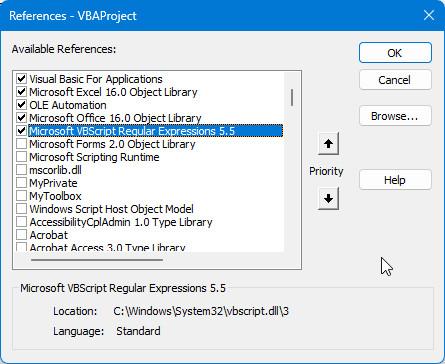
Figure 1.
2026-01-13 16:42:08
J. Woolley
My Excel Toolbox includes the following regular expression function that is similar to Excel 365's REGEXEXTRACT:
=RegExMatch(Text, Pattern, [Mode], [IgnoreCase], [Multiline])
With this function, the following formula will return the last word free of any non-word characters such as punctuation:
=RegExMatch(A1, "([A-Za-z-']+)[^A-Za-z-']*$", 2)
The result is the same as the following formula described in my recent comment below:
=REGEXEXTRACT(A1, "([A-Za-z-']+)[^A-Za-z-']*$", 2)
See https://sites.google.com/view/MyExcelToolbox/
2026-01-11 19:56:13
J. Woolley
Re. the Tip's second formula
=REGEXEXTRACT(A1, "(\w+)\W*$", 2)
RegExp defines \w as a word metacharacter equivalent to [A-Za-z0-9_] and \W is the non-word converse equivalent to [^A-Za-z0-9_]. The Tip prefers words that contain only letters, hyphen, and apostrophe, or [A-Za-z-']. Therefore, the second formula should be modified like this:
=REGEXEXTRACT(A1, "([A-Za-z-']+)[^A-Za-z-']*$", 2)
This is simpler than the Tip's third formula. Notice [^A-Za-z-']*$ should be interpreted as zero or more (not "any number of") non-word characters at the end of the text.
Got a version of Excel that uses the ribbon interface (Excel 2007 or later)? This site is for you! If you use an earlier version of Excel, visit our ExcelTips site focusing on the menu interface.
FREE SERVICE: Get tips like this every week in ExcelTips, a free productivity newsletter. Enter your address and click "Subscribe."
Copyright © 2026 Sharon Parq Associates, Inc.

Comments