

Written by Allen Wyatt (last updated January 17, 2026)
This tip applies to Excel 2007, 2010, 2013, 2016, 2019, 2021, 2024, and Excel in Microsoft 365
David has hundreds of workbooks, each for a project he is working on now or has worked on. They contain, among other information, email addresses. Occasionally Excel will convert these addresses to hyperlinks so that when Dave clicks on the cell it opens an email. Dave is wondering how he can stop Excel from doing this.
It entirely depends on what you actually want to stop. If you simply don't want to launch an email for that address, notice what happens if you hover the mouse pointer over the address—you should see a ToolTip that indicates you can select the cell if you simply hold down the mouse button. In other words, an email is created if you click once, but if you click and hold down the mouse button, then the cell is selected and no email is created.
If what you want to stop, however, is Excel converting email addresses to active links, then all it takes is a simple configuration change:
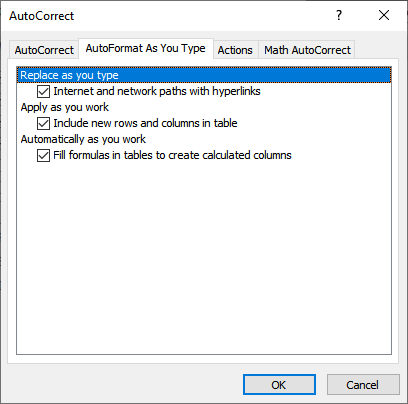
Figure 1. The AutoFormat As You Type tab of the AutoCorrect dialog box.
Now Excel will not assume you want an active link. This change affects other types of links, as well, such as those to websites. It will not affect, however, any existing links within a workbook. The easiest way to get rid of those active links is to press Ctrl+A to select everything in the worksheet. Then, right-click on any selected cell and choose Remove Hyperlinks from the resulting Context menu.
If you have hundreds of workbooks, as David has, then you can use a macro to remove all hyperlinks from all worksheets in the currently active workbook:
Sub RemoveAllHyperlinks()
    Dim ws As Worksheet

    For Each ws In ActiveWorkbook.Worksheets
        ws.Hyperlinks.Delete
    Next
End Sub
Whenever you open a workbook, just run the macro and all the hyperlinks are removed.
Note:
ExcelTips is your source for cost-effective Microsoft Excel training. This tip (13038) applies to Microsoft Excel 2007, 2010, 2013, 2016, 2019, 2021, 2024, and Excel in Microsoft 365.

Excel Smarts for Beginners! Featuring the friendly and trusted For Dummies style, this popular guide shows beginners how to get up and running with Excel while also helping more experienced users get comfortable with the newest features. Check out Excel 2019 For Dummies today!
You can add hyperlinks to a worksheet and Excel helpfully makes them active so that when you click them the target of the ...
Discover MoreYou can configure images in Excel so that if someone clicks on them, a macro is executed. You cannot, however, have a ...
Discover MoreWhen you create a worksheet that is destined for viewing on the Web, you will want to specify the monitor resolution you ...
Discover MoreFREE SERVICE: Get tips like this every week in ExcelTips, a free productivity newsletter. Enter your address and click "Subscribe."
2026-01-18 09:34:09
J. Woolley
David might be interested in the following My Excel Toolbox dynamic array function:
=ListHyperlinks([AllSheets], [SkipHeader])
Expect four columns (Anchor, Text, Hyperlink Address, ScreenTip) listing each hyperlink in the worksheet or workbook.
See https://sites.google.com/view/MyExcelToolbox/
2026-01-17 09:17:29
jamies
And - for general handling of links -
Maybe actually drag the link entry - such as [Read this] to a folder or the desktop,
creating a shortcut.
then from the properties
select the link entry, and scroll along it to highlight all except the leading h, or w
now, what you get with copy, placed in the clippie is not a link,
but a text stream of the actual link less the first character
paste that into a cell, or document, and it's text
you can add the leading h or w to that text string and move the cursor to the end of it -
press enter and you get a link that has the same text as it's identifier and the link
you can also add a leading < and a trailing > before pressing enter
Major annoyance
- you have to get the link showing by selecting the [this] entry to go to the page -
but rather than having loads of difficult to manage "Favorites" in the browser,
allows you to have a folder full of those links - and editable ones too -
So shortcut - EDGE guest is
Target "C:\Program Files (x86)\Microsoft\Edge\Application\msedge.exe" --guest
and similarly manage Access (excel is a pain) startup command stream parameters with /x scriptname
but remember tracking can be using the IP and device - doesn't need a cookie!
Got a version of Excel that uses the ribbon interface (Excel 2007 or later)? This site is for you! If you use an earlier version of Excel, visit our ExcelTips site focusing on the menu interface.
FREE SERVICE: Get tips like this every week in ExcelTips, a free productivity newsletter. Enter your address and click "Subscribe."
Copyright © 2026 Sharon Parq Associates, Inc.
Comments